An Admin ProUser can change any of his/her user licenses from Display User to ProUser. Here, if an Admin is using an ‘Enterprise’ edition then the user license can be changed from Display to ProUser with ease but if the server license type is a ‘standard’ edition, then it will ask for a new license key to enter in the provided text field.
To learn more, let us walk through the below procedure:
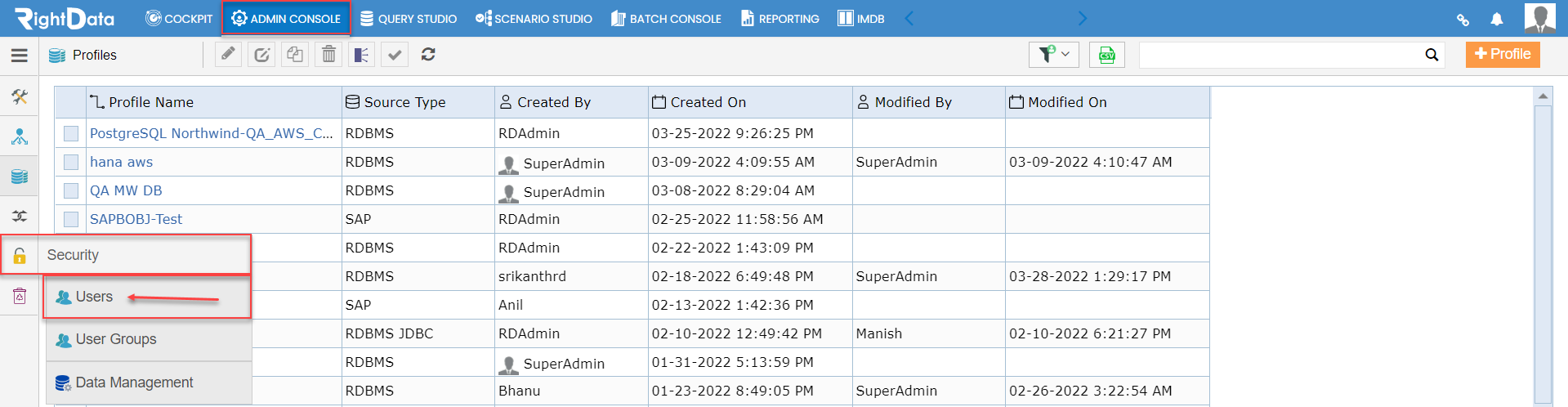
- Click the ‘ADMIN CONSOLE’ module.
- Hover on the ‘Security’ snippet from the left pane options.
- Click the ‘Users’ option.
Path: ADMIN CONSOLE > Security > Users
- The Admin is navigated to the ‘Users’ session page.
Note: By default, ‘All Users’ tab is selected.
- Let’s suppose convert ‘Evans Carter’ Display User to a ProUser.
Note: ‘Evans Carter’ is a Display User here.
Note: Click here to go through the ‘Users’ user guide.

- Select and checkbox the user ‘Evans Carter’.
- Click the ‘Edit’ button.

- An ‘Edit User’ pop-up window is displayed.
- By default, the ‘Role Type’ is selected as ‘Display User’.
Note: ‘Email’ field is greyed due to confidential data.
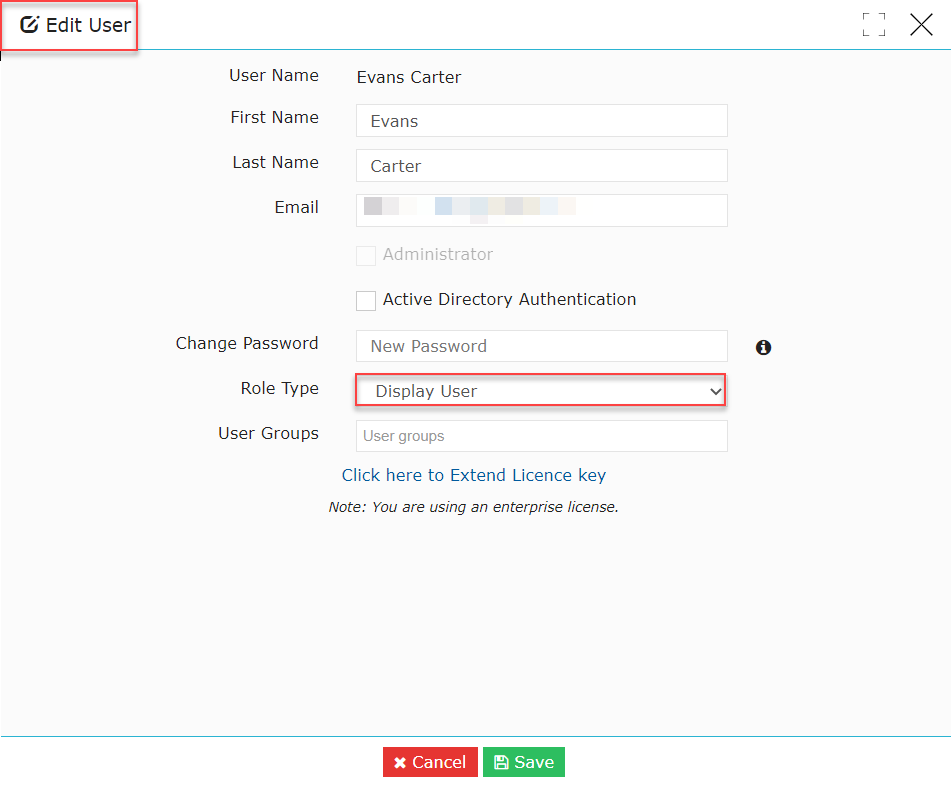
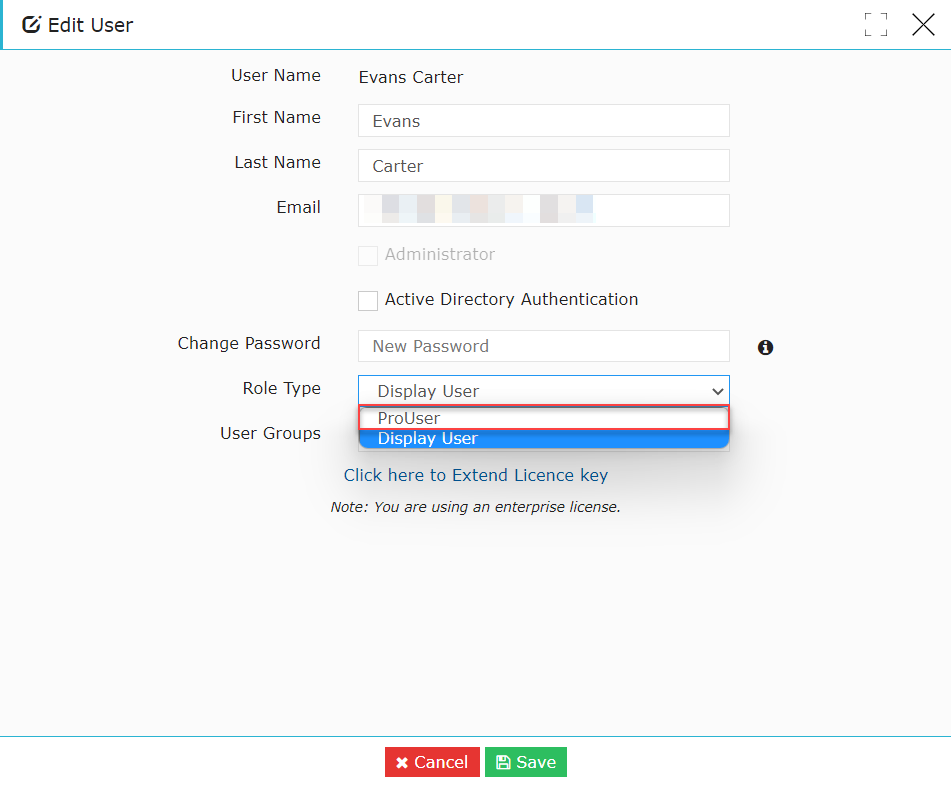
- Click the ‘Role Type’ drop-down button.
- Select and click the ‘ProUser’ option from the ‘Role Type’ drop-down list.
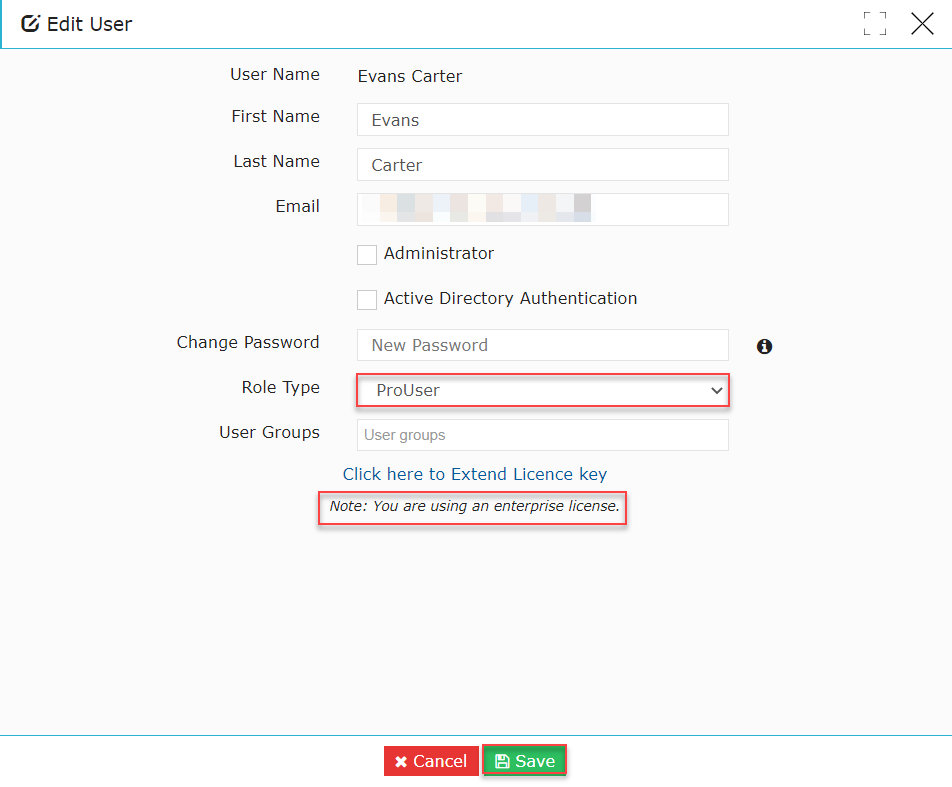
- This action selects the ‘Role Type’ field as ‘ProUser’.
Note: Here the Admin is using an ‘Enterprise’ license edition which can be noticed from the below screenshot.
- Click the ‘Save’ button.
- A toaster message ‘Evans Carter Modified successfully’ is displayed.
Note: In the below screenshot, the Admin can notice the Display User (‘Evans Carter’ here) is converted to a ‘ProUser’.
Note: Click here for the ‘Offline Enterprise server license activation’ user guide.
Note: Click here for the ‘Server License Configuration’ user guide.
