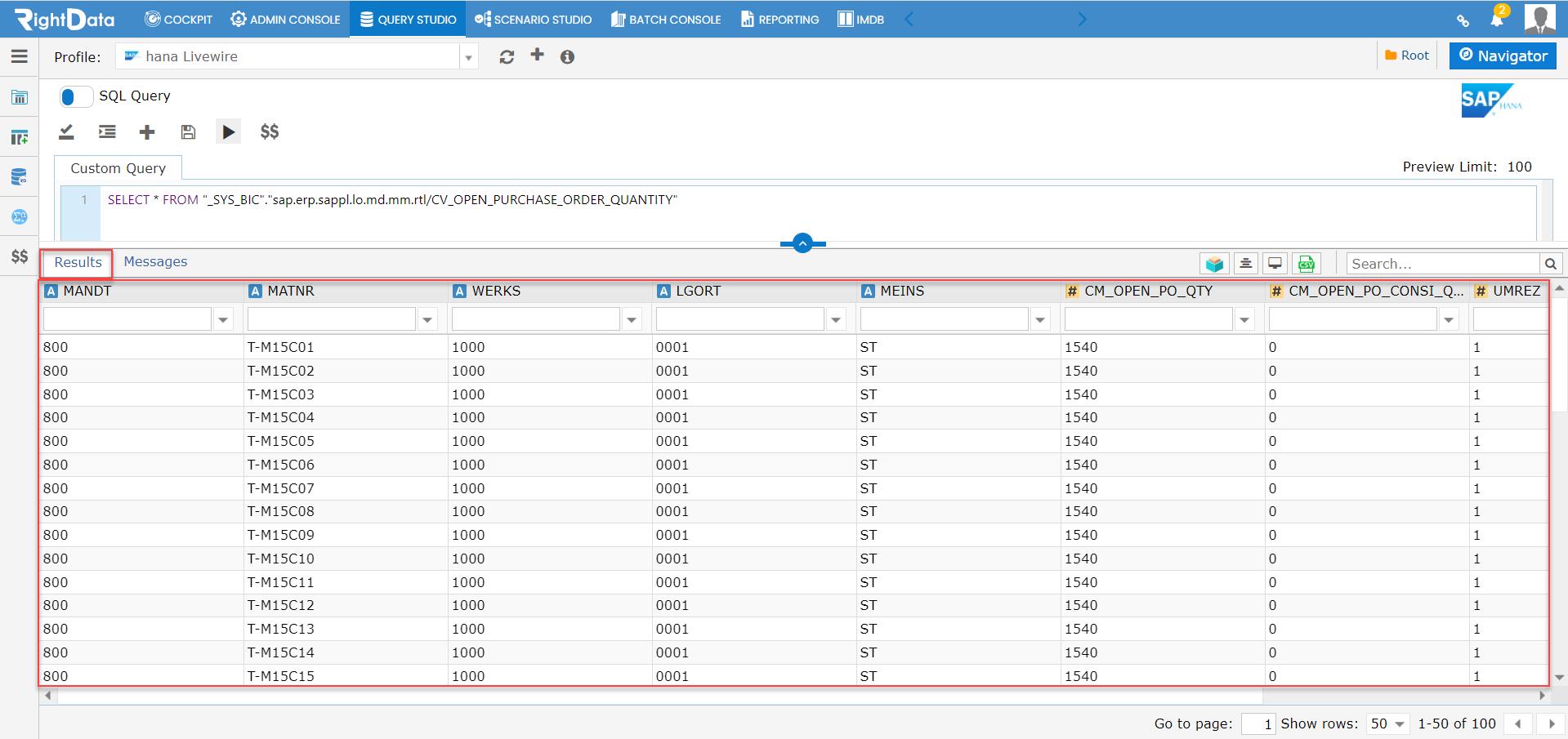
‘Catalog’ and ‘Content’ are the two navigators used with the ‘Hana’ profile. Now the user can use these navigators for query executions.
To learn more, let us walk through the below procedure:
- Click the ‘QUERY STUDIO’ module.
- Hover on ‘Query Builder’ from the left pane options.
- Click the ‘Query’ option.
Path: QUERY STUDIO > Query Builder > Query

- The user is navigated to the ‘Query’ session page.
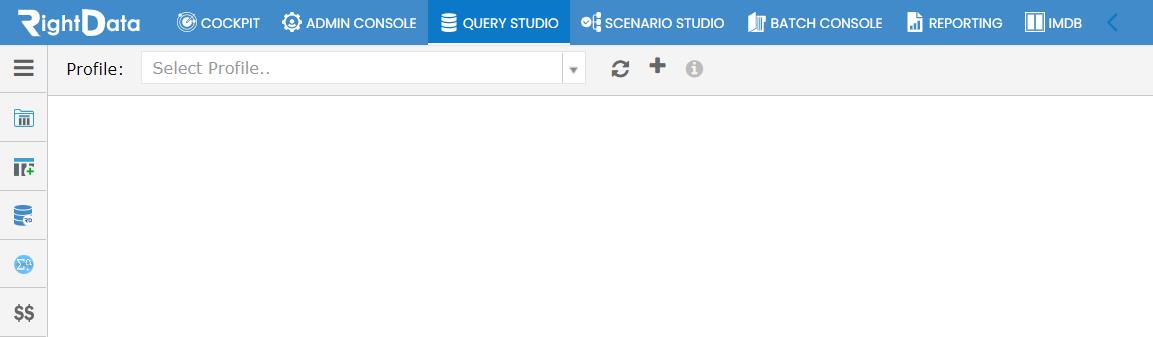
- Let’s select ‘hana Livewire’ from the ‘Profile’ drop-down list.
- Click the ‘Navigator’ button from the top right corner of the page.

- ‘Catalog’ and ‘Content’ Navigators are displayed.
Note: By default, the ‘Catalog’ tab is selected.
- A ‘Search’ field is used to search the Navigator content.
- ‘Recently used’ and ‘hana Livewire’ schemas are displayed.
- Now, let’s click the ‘Content’ tab.

- This action displays the ‘Content’ Navigator schemas.
- Let’s click the plus (+) button of ‘hana Liveware’.

- This action displays its schemas.
- Click the plus (+) button of ‘sap.erp.sappl.lo.md.mm.rtl’ schema.
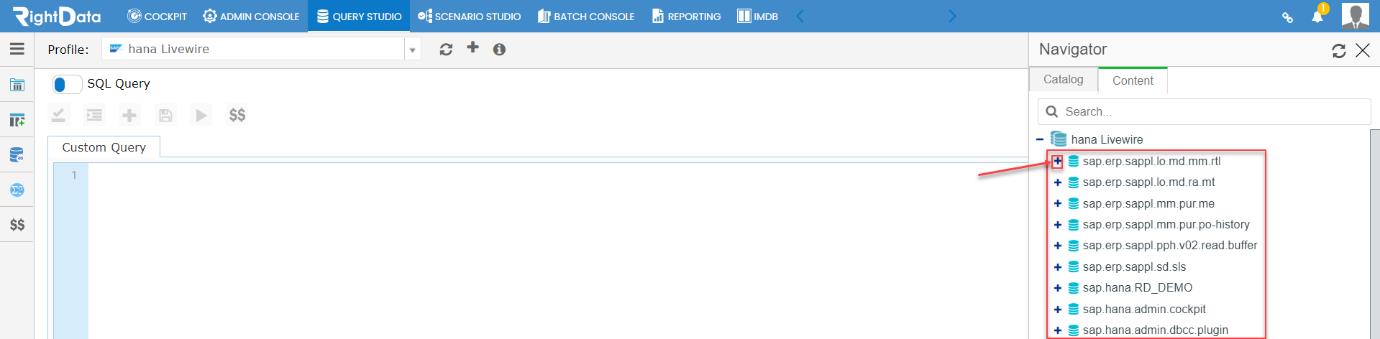
- This action displays its tables.
- Let’s click the plus (+) button of ‘calculationview’ table.
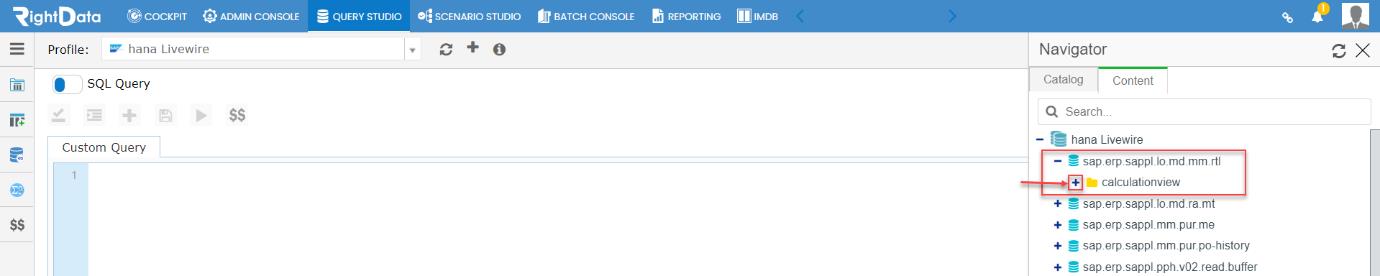
- This action displays its data columns.
- Let’s click the column ‘CV_OPEN_PURCHASE_ORDER_QUANTITY’.

- This action adds the SQL Query.
- Click the ‘Execute Now’ button.

- This action performs the SQL Query execution.
- The user is navigated to the ‘Results’ tab displaying the execution results.