Previously, the user was unable to see the created (Query, Scenario, or Job) folder path view within the designer header but now this issue has been rectified and the user can see the exact folder path.
To learn more, let us walk through the below procedure:
- Click the ‘SCENARIO STUDIO’ module.
- The user is navigated to the ‘Scenario Explorer’ session page.
- Let’s suppose click the folder named ‘Bhanu.’

- This action displays all the contents/files available in the ‘Bhanu’ folder.
Note: There are only 3 sub folders available in the main folder ‘Bhanu.’
- Let’s click the ‘Create FDR Scenario’ button.

- The user is navigated to an FDR Scenario (bhanu 4/1/2022 10:42:50 AM) session page in create and edit mode.
Note: The designer header is not saved here.
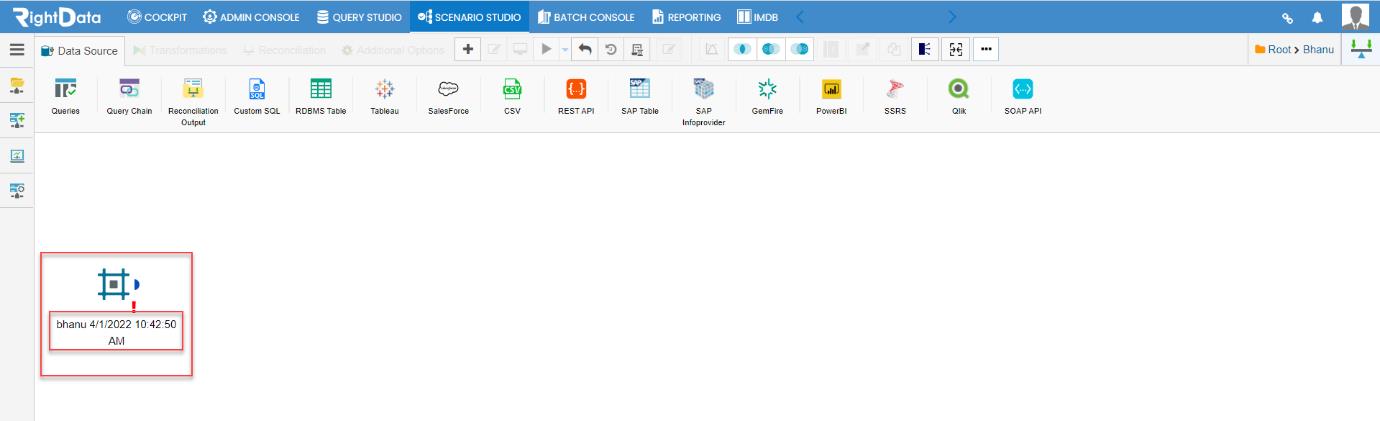
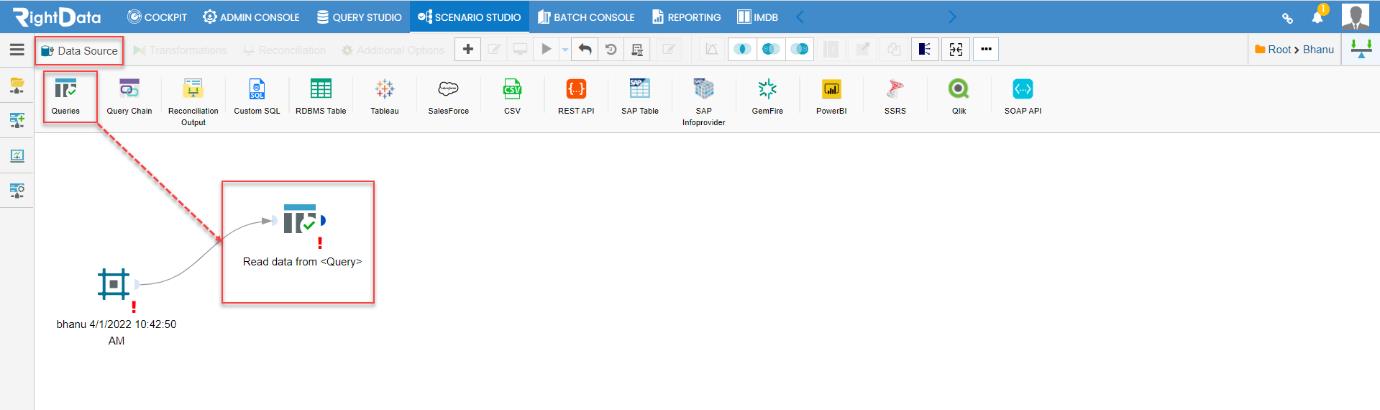
- From the ‘Data Source’ tab, let’s drag and drop ‘Queries’ icon onto the FDR session page.
- Click the ‘Read data from <Query>’ widget.
Note: The above action saves the Designer header.
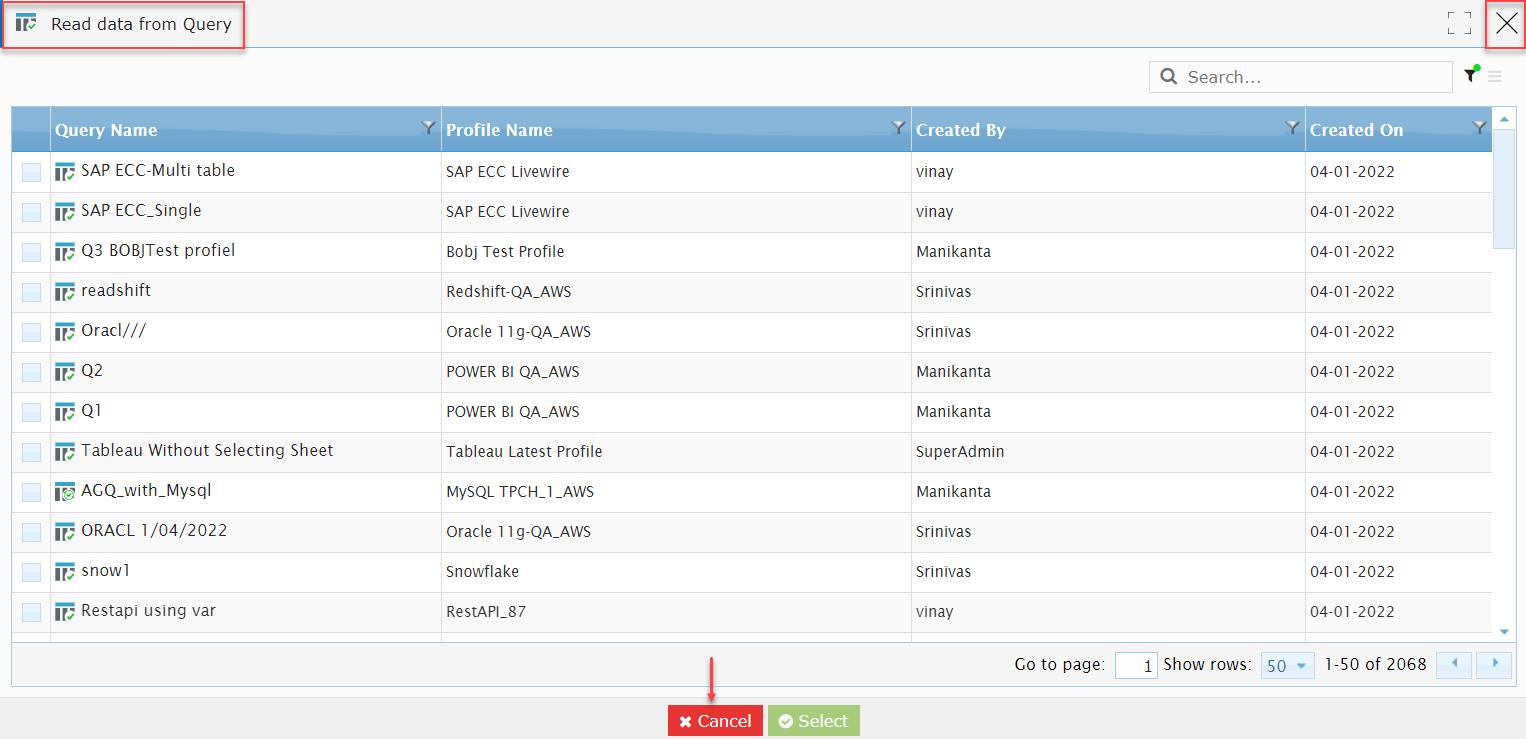
- A ‘Read data from Query’ pop-up window is displayed.
- Let’s now either click the ‘Cancel’ button or ‘X’ button from the top left corner of the page.
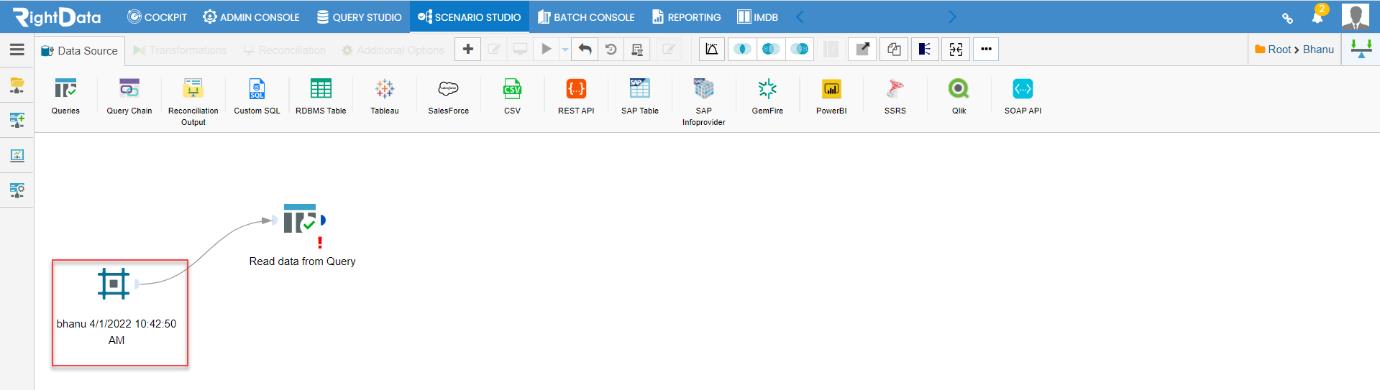
- This action closes the ‘Read data from Query’ pop-up window.
- The user is navigated to the FDR session page.
Note: The designer header is saved here as the red-color exclamation is removed.
- Click the designer header (bhanu 4/1/2022 10:42:50 AM).
- A ‘bhanu 4/1/2022 10:42:50 AM’ pop-up window is displayed.
- The user can notice the ‘Folder Path’ as ‘Root/Bhanu.’
- Now, let’s click the ‘X’ button.
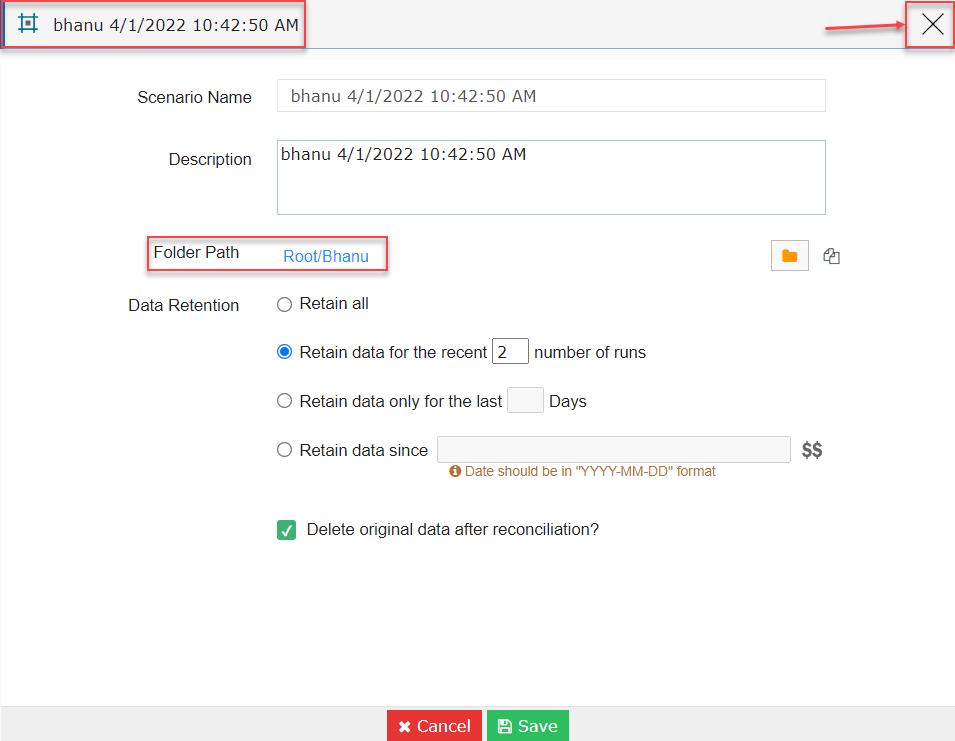
- This action closes the ‘bhanu 4/1/2022 10:42:50 AM’ pop-up window.
- Now, let’s click on the text ‘Bhanu’ from the top right corner of the page.
Note: The ‘Root > Bhanu’ is the folder path.
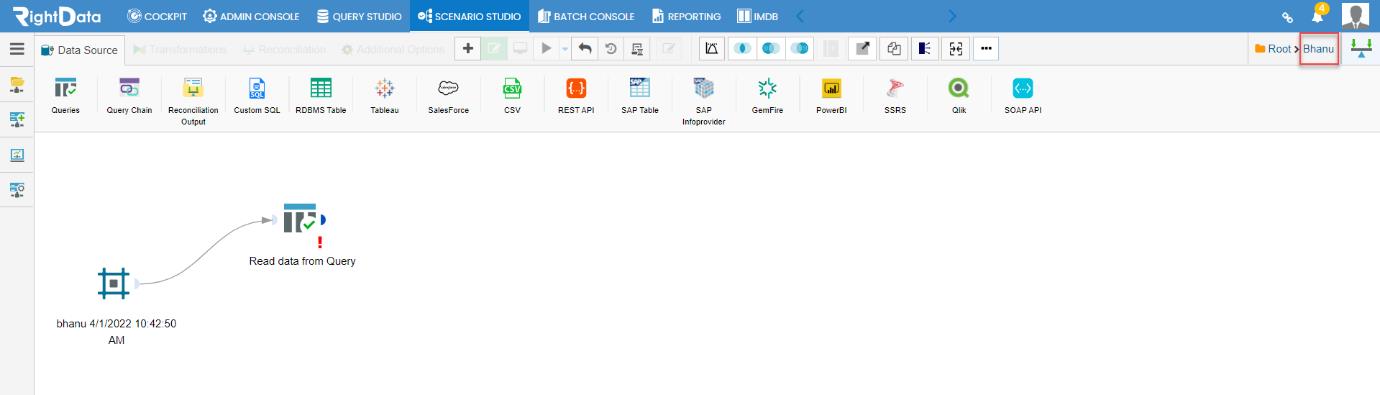
- The user is navigated to the ‘Bhanu’ folder where the FDR scenario (bhanu 4/1/2022 10:42:50 AM) is added to it.
