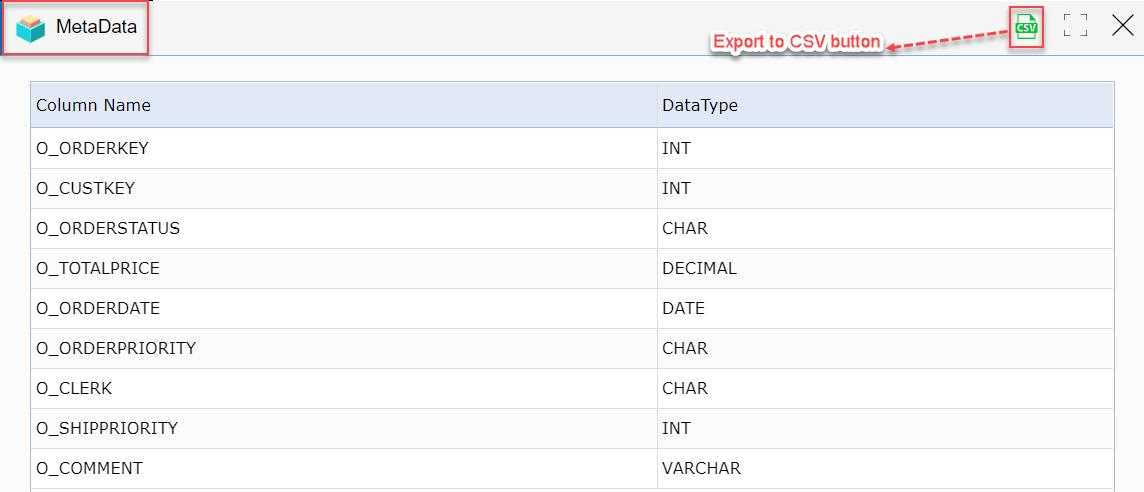
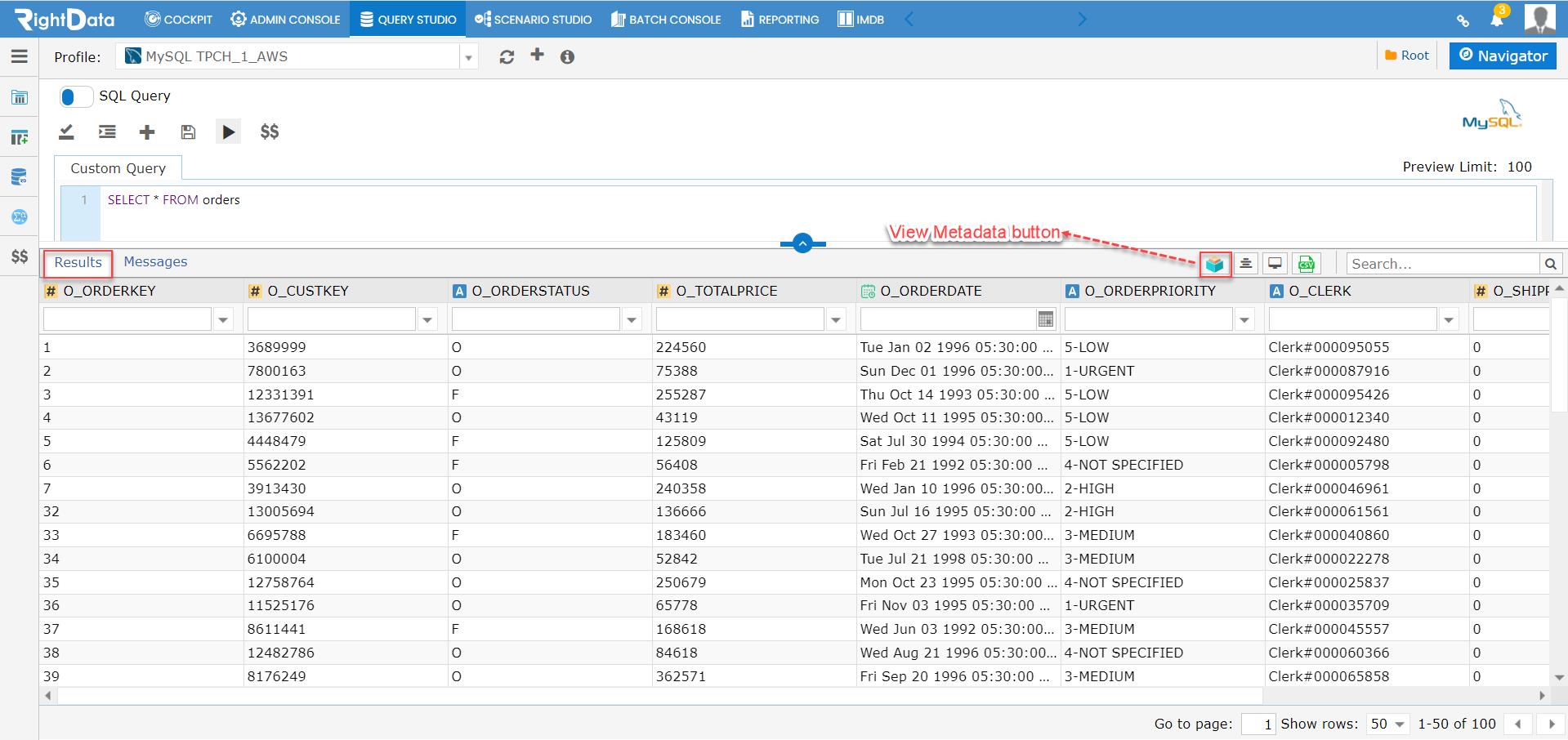
A ‘Metadata’ button is newly added within the Query Builder ‘Results’ tab that displays the Metadata in a tabular grid pattern with columns such as ‘Column Name’ and ‘Data Type.’
To learn more, let us walk through the below procedure:
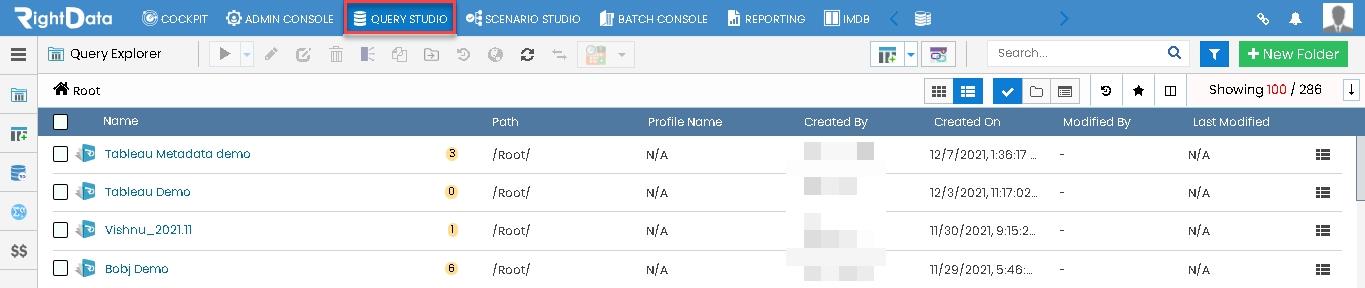
- Click the ‘QUERY STUDIO’ module.
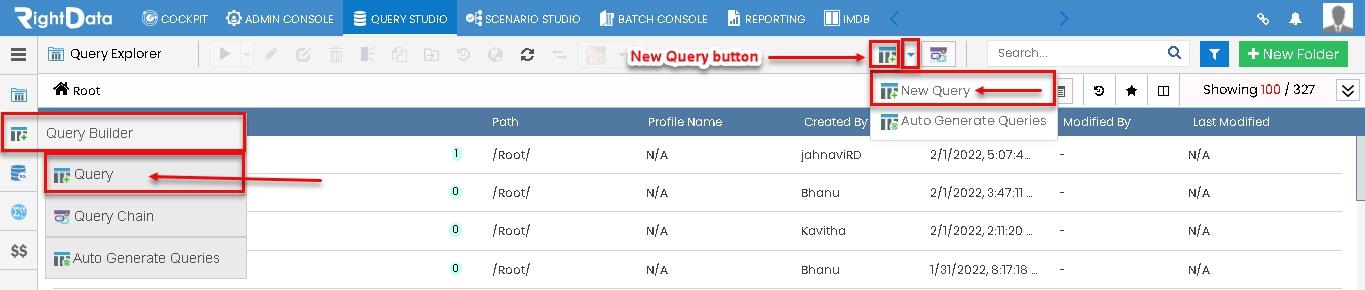
- Hover on the left pane options to view the ‘Query Builder’ snippet.
- Click the ‘Query’ option.
Note: The user can click the ‘Query’ from the left pane options. Also, he/she can directly click the ‘New Query’ button or ‘New Query’ text from the drop-down list.
Path 01: QUERY STUDIO > Query Builder > Query
Path 02: QUERY STUDIO > New Query
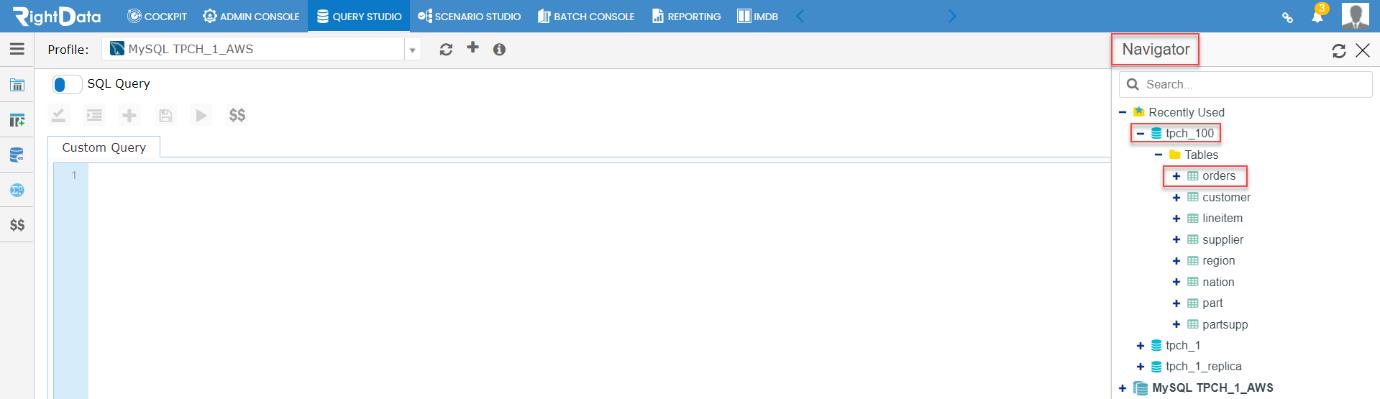
- A new ‘Query’ session page is displayed.
- Let’s select ‘MySQL TPCH_1_AWS’ from the Profile drop-down list.
- Click the ‘Navigator’ button from the top left corner of the page.
Note: All user-created profiles are visible under this ‘Profile’ drop-down list.

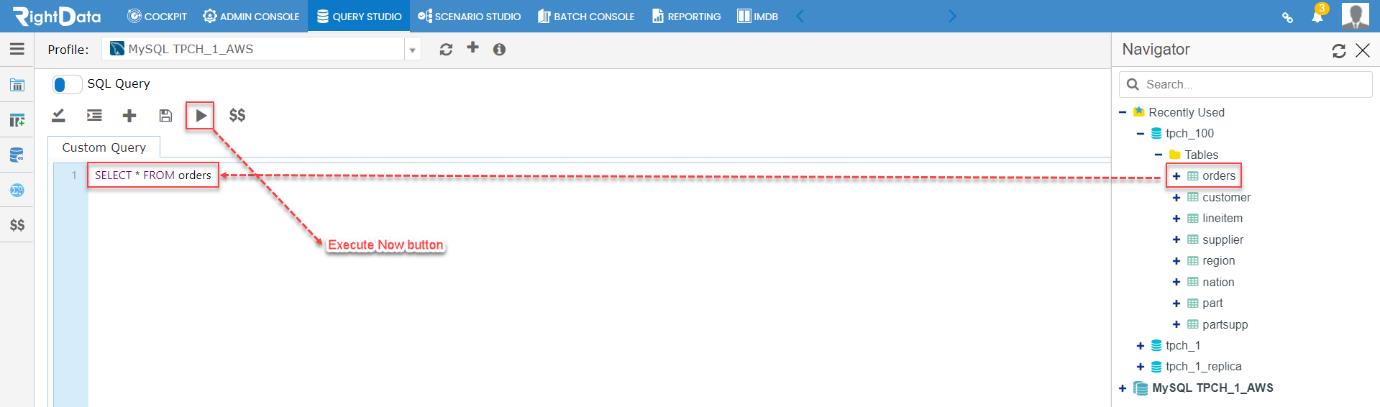
- Let’s select the ‘Orders’ table from the ‘tcph_100’ schema.
- Click the ‘Orders’ table.
- The ‘Orders’ table will be added.
- Click the ‘Execute Now’ button to perform the execution.
- This action navigates the user to the ‘Results’ tab displaying the Executed data in a tabular grid pattern.
- Click the ‘View Metadata’ button.
- A ‘Metadata’ pop-up window is displayed.
- An ‘Export to CSV’ button is used to download the Metadata in a CSV file format.