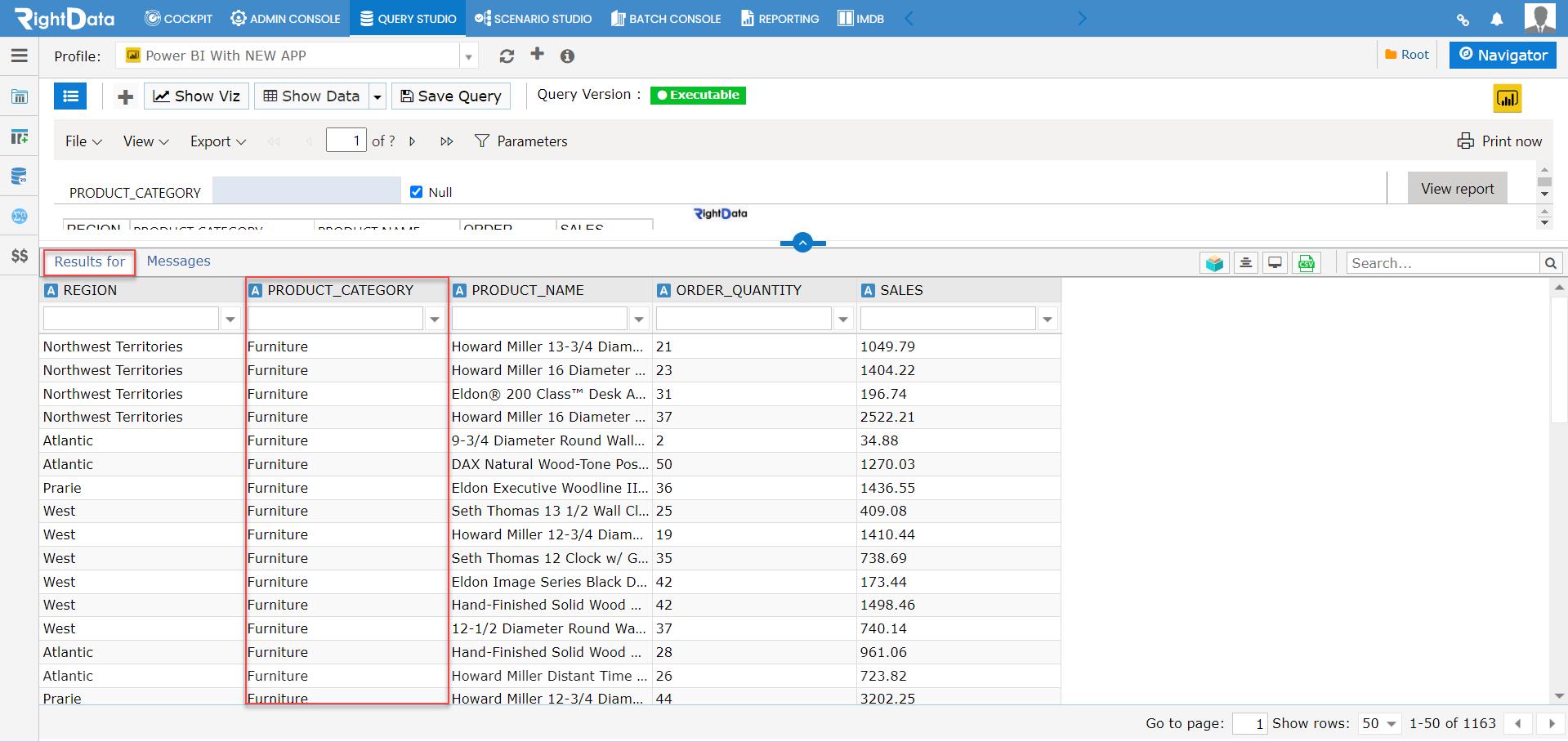
Users can now apply filters on any selected column/columns from the ‘Power BI’ data table. There are two parameters for the ‘Paginated Report Filters’ such as ‘Key’ and ‘Value’ and the users must select these two parameters to apply the filters accordingly.
To learn more, let us walk through the below procedure:
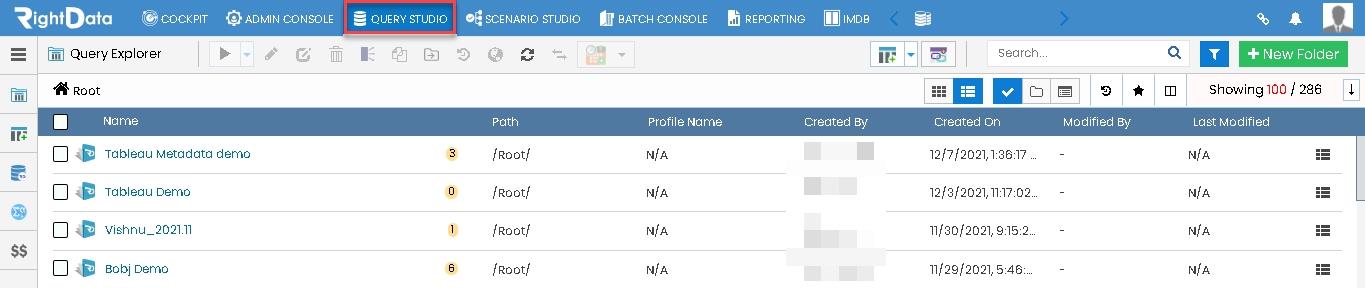
- Click the ‘QUERY STUDIO’ module.
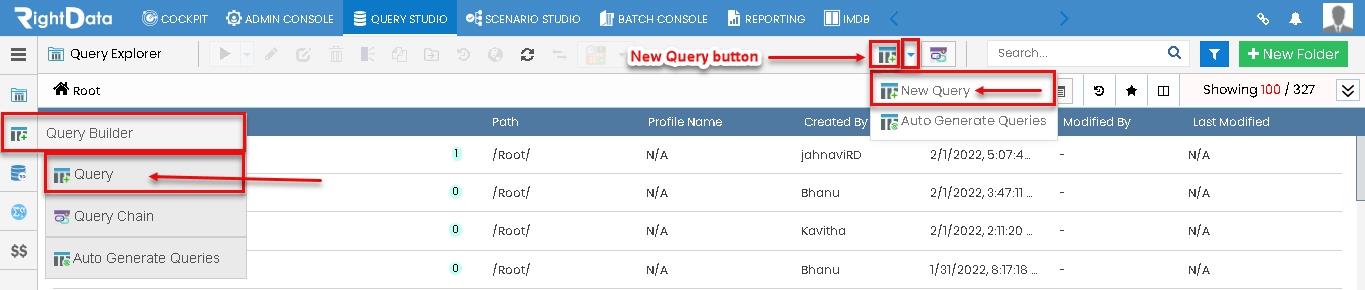
- Hover on the left pane options to view the ‘Query Builder’ snippet.
- Click the ‘Query’ option.
Note: The user can click the ‘Query’ from the left pane options. Also, he/she can directly click the ‘New Query’ button or ‘New Query’ text from the drop-down list.
Path 01: QUERY STUDIO > Query Builder > Query
Path 02: QUERY STUDIO > New Query
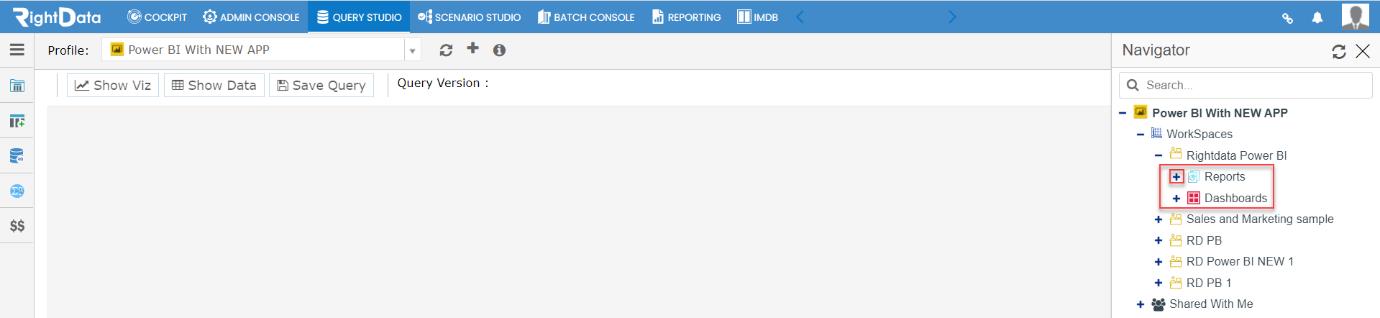
- A new ‘Query’ session page is displayed.
- Let’s select ‘Power BI With NEW APP’ from the Profile drop-down list.
- Click the ‘Navigator’ button from the top left corner page.

- A ‘Navigator’ slide screen is displayed.
- A ‘Refresh’ button is used to refresh the ‘Navigator’ session page.
- A ‘Search’ box field is used to search for any schemas or tables.
- Click the plus (+) button of ‘Power BI With NEW APP’.

- ‘WorkSpaces’ and ‘Shared With Me’ are displayed.
- Click the plus (+) button of ‘WorkSpaces’.

- Different tables such as RightData Power BI, Sales and Marketing sample, RD PB, RD Power BI NEW 1, and RD PB 1 are displayed.
- Click the plus (+) button of ‘RightData Power BI.’

- ‘Reports’ and ‘Dashboards’ are displayed.
- Click the plus (+) button of ‘Reports.’
- Sample Session Report, Sample Report, Sample Pagination report, Filter Report, and Sales Performance are displayed.
- Double tab the ‘Filter Report’ button.
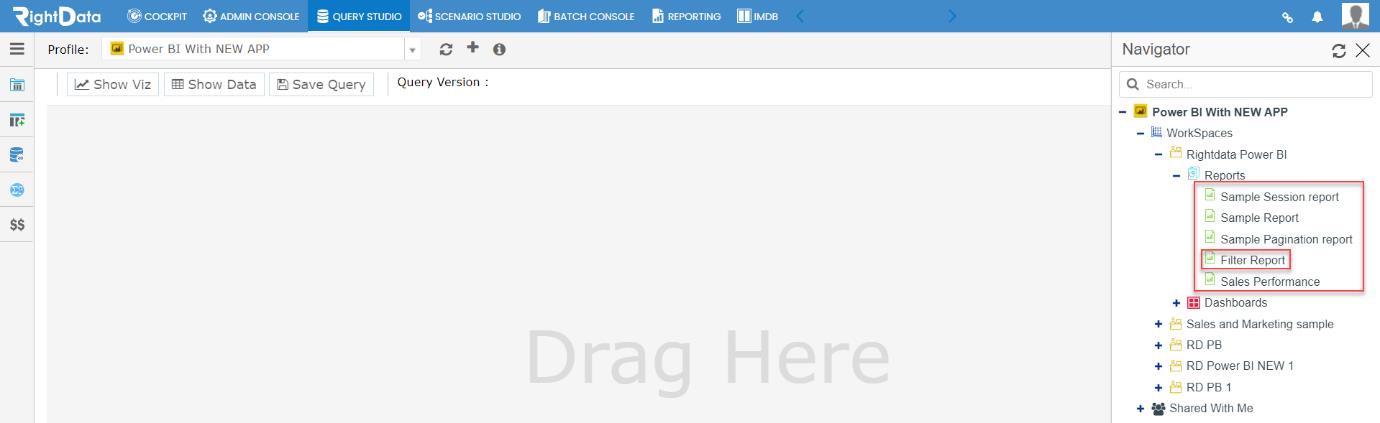
- The ‘Filter Report’ data is loaded.
- A message ‘Loading report….’ showing specific number of rows is displayed.
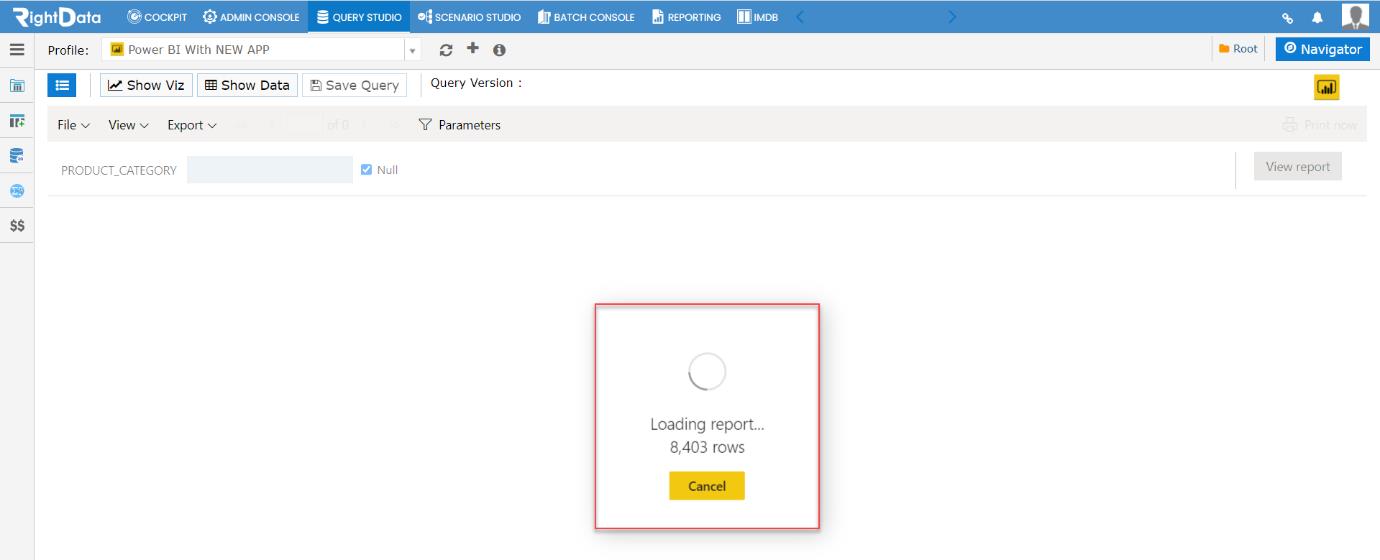
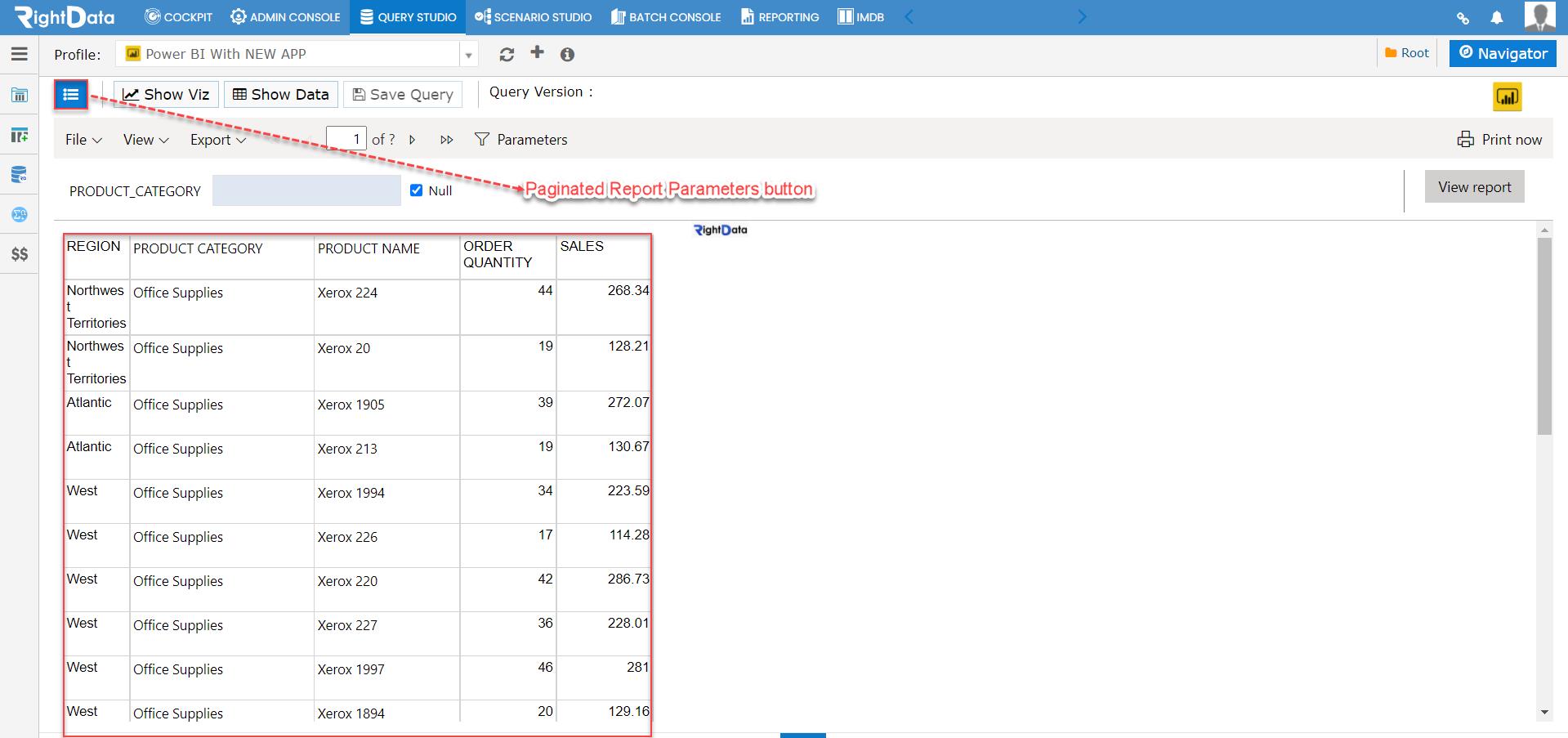
- The ‘Filter Report’ data is loaded.
- Now let’s click the ‘Paginated Report Parameters’ button from the top left corner of the page.
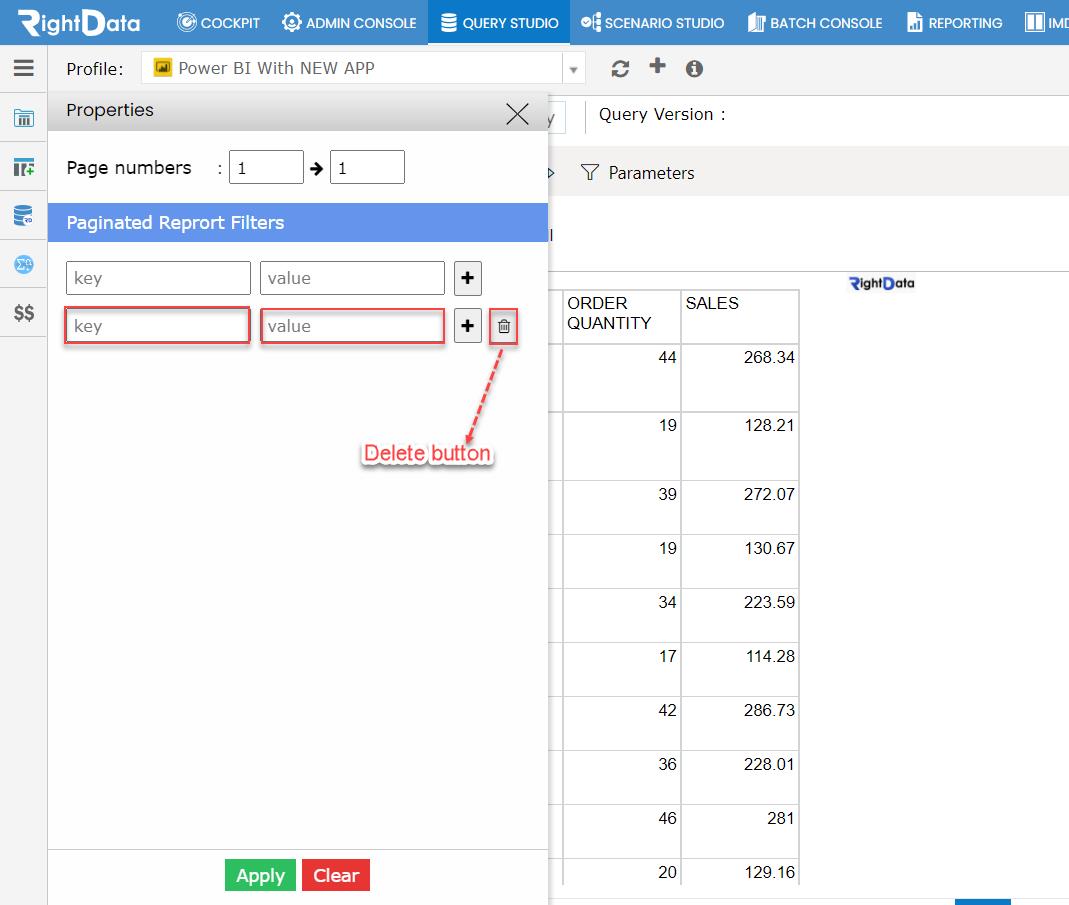
- A ‘Properties’ slide screen is displayed.
- The ‘Paginated Report Filters’ display two parameters as Key and Value.
- Click the plus (+) button.
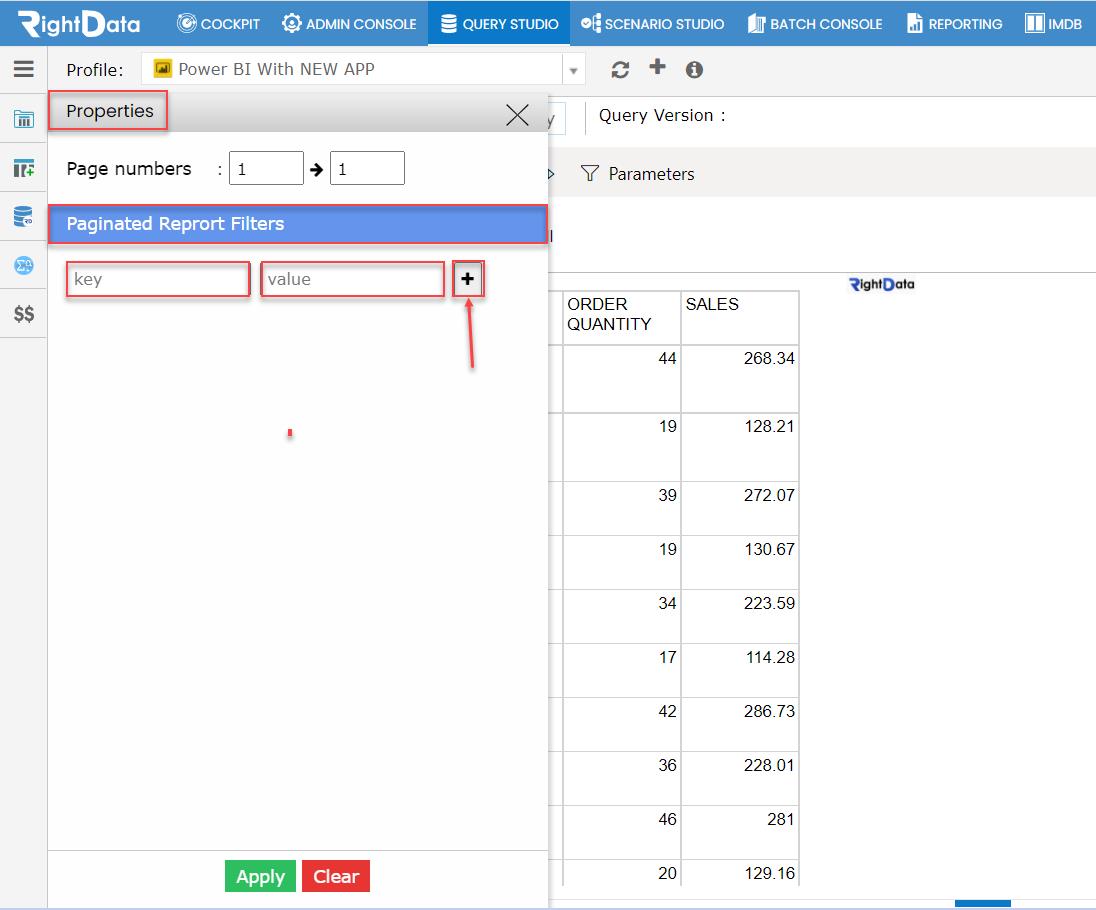
- Another set of Key and Value parameters are added and displayed.
- Let’s click the ‘Delete’ button.
Note: This action deletes the selected Key and Value parameter.
- Let’s suppose add ‘SupermarketsalesPRODUCTCATEGORY’ as Key and ‘Furniture’ as Value.
- Click the ‘Apply’ button.
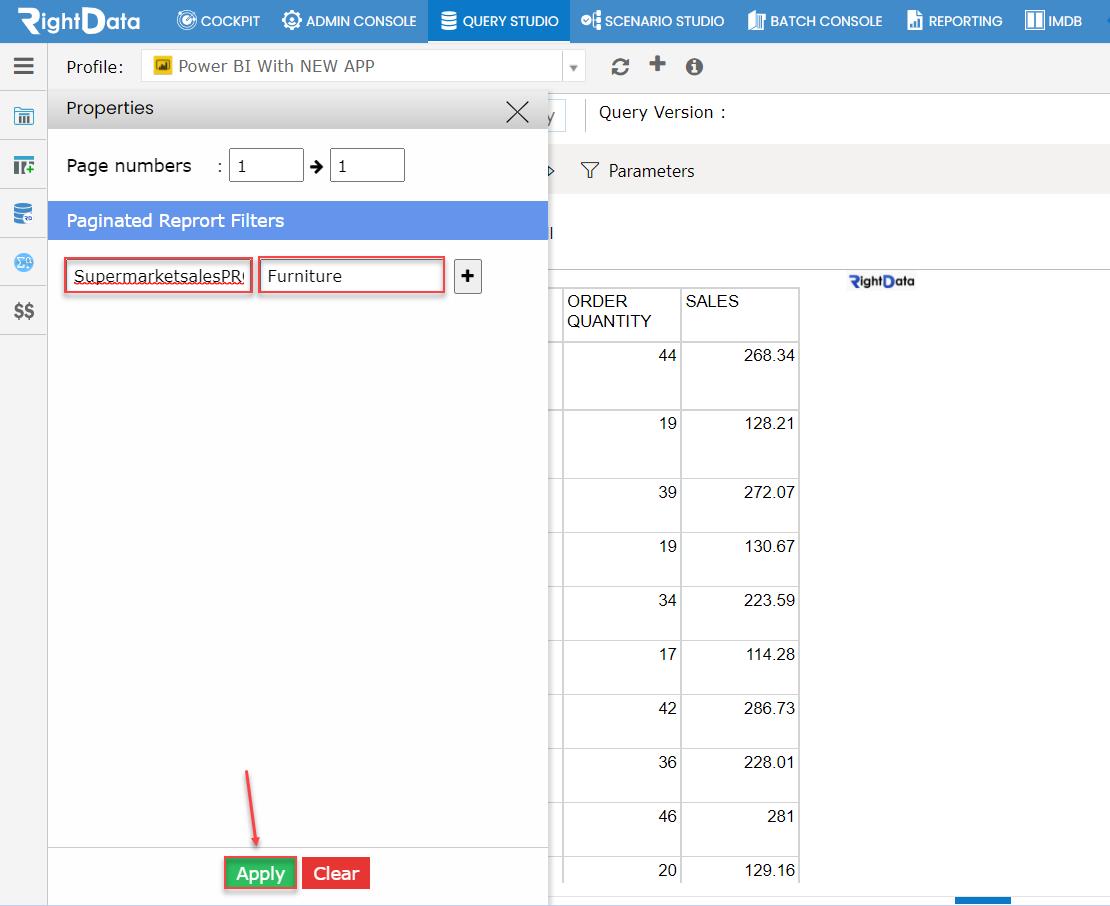
- This action closes the ‘Properties’ slide screen window.
- Click the ‘Show Data’ button.

- This displays the ‘Paginated Report Filters’ data.