An ‘Areas’ drop-down selection field is added within the Azure DevOps widget. Now, users can choose the ‘Areas’ drop-down list based on the ‘Project’ selection. Similarly, users can choose the ‘Test Case’ drop-down list based on the ‘Areas’ selection. This enhancement works with all FDRs, Validations, and QPTs.
To learn more, let us walk through the below procedure:
- Click the ‘SCENARIO STUDIO’ module.
- The user is navigated to the ‘Scenario Explorer’ session page.

- Let’s suppose select a sample scenario named ‘FDR With Email’.

- Select the checkbox ‘FDR With Email’ and click the ‘Edit’ button.

- The user is navigated to the ‘FDR With Email’ session page in create and edit mode.
- Let’s click the ‘Additional Options’ tab.

- Select ‘Azure DevOps Board’ Icon.
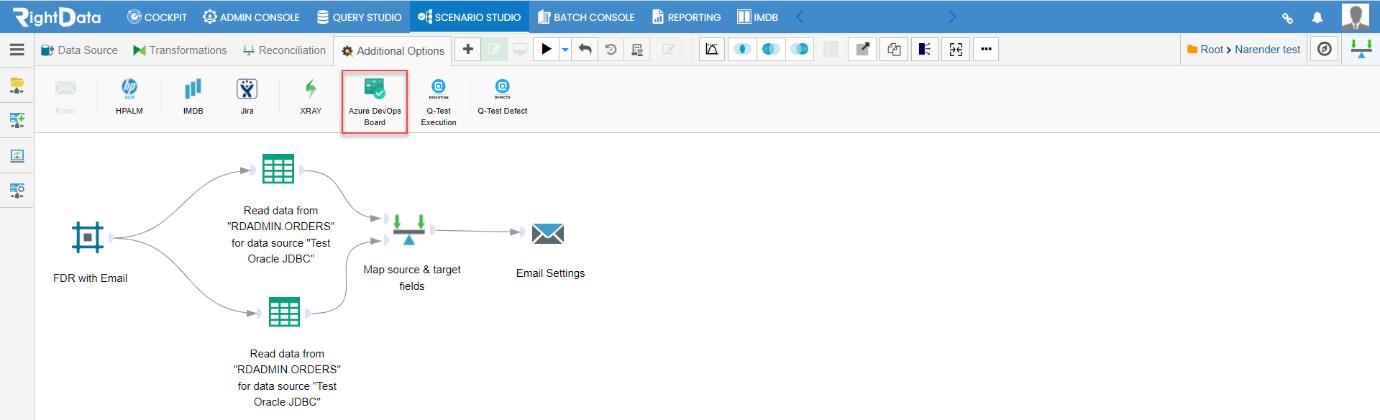
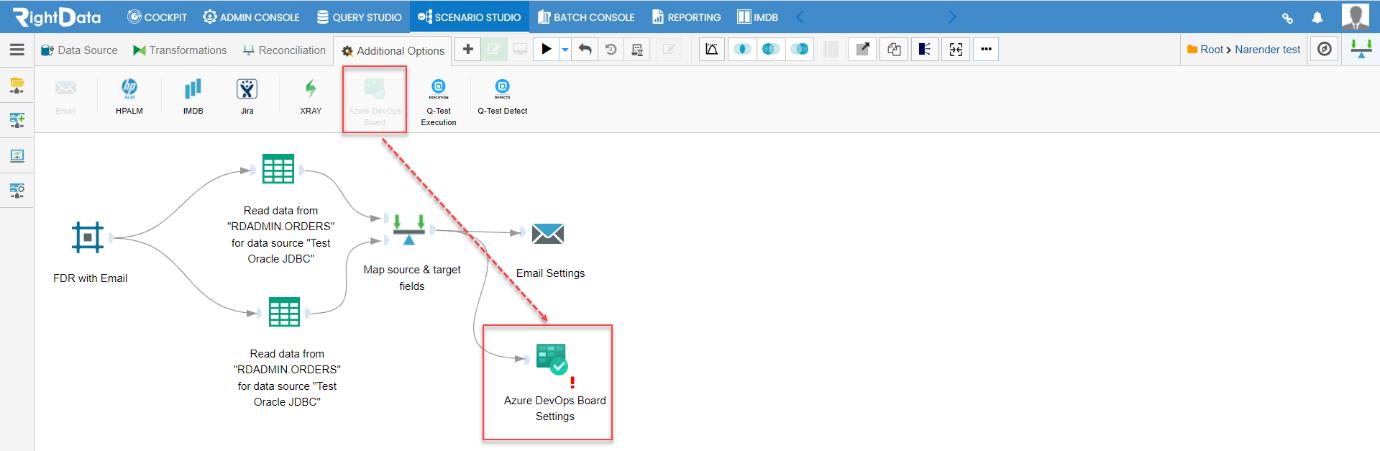
- Let’s drag and drop the ‘Azure DevOps Board’ Icon onto FDR session page in create and edit mode.
- Click the ‘Azure DevOps Board Settings’ widget.
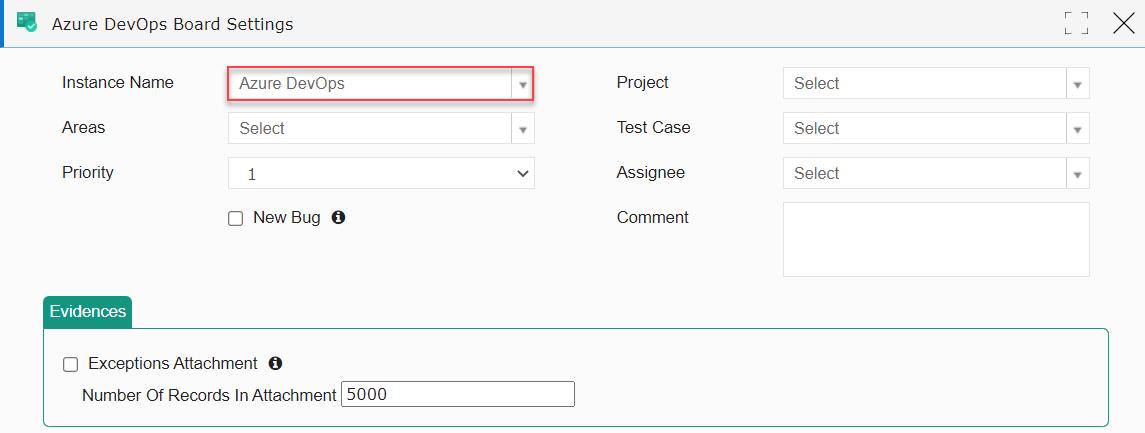
- An ‘Azure DevOps Board Settings’ pop-up window is displayed.
- The user can notice the newly added ‘Areas’ drop-down selection field.

- Let’s select ‘Azure DevOps’ from the ‘Instance Name’ drop-down list.
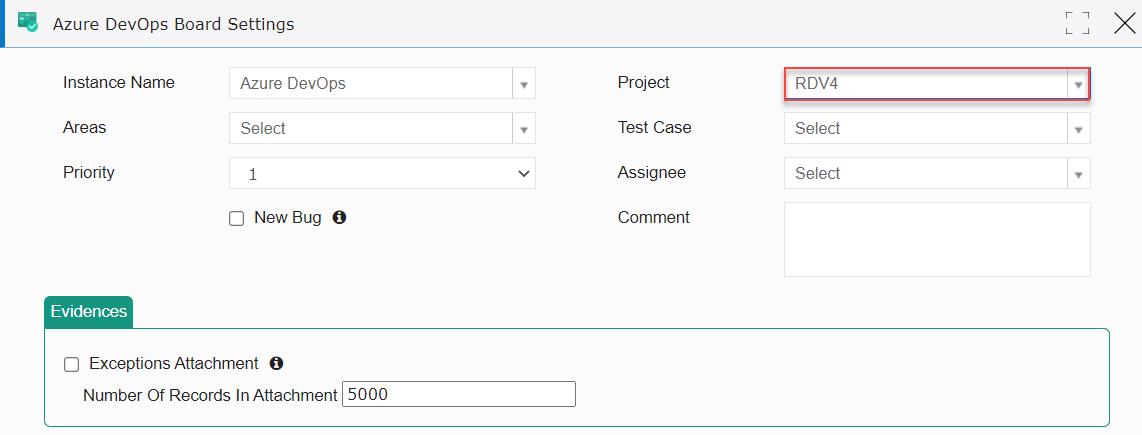
- Select ‘RDV4’ from the ‘Project’ drop-down list.
- Select ‘RDV4\New Area’ from the ‘Areas’ drop-down list.
Note: The user cannot select the ‘Areas’ drop-down list without selecting the ‘Project’ field.
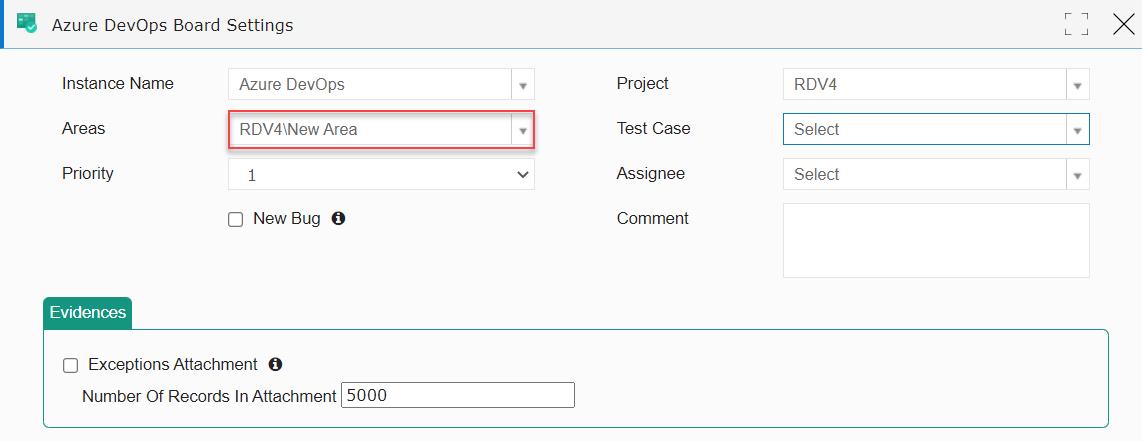
- Let’s select the ‘Test’ from the ‘Test Case’ drop-down list.
Note: The user cannot select the ‘Test Case’ drop-down list without selecting the ‘Areas’ field.
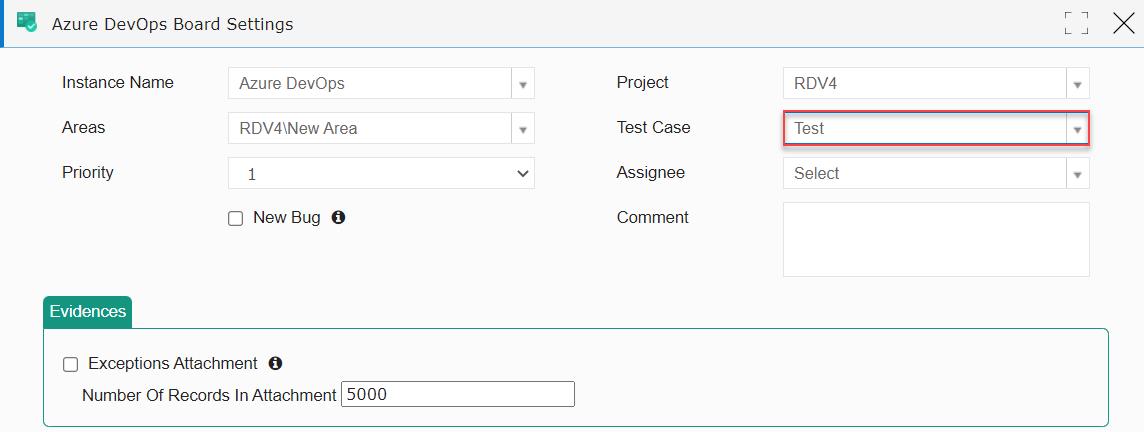
- Let’s add the ‘Assignee’ name as ‘Vishnu Pothuraj.’
- Click the ‘Save’ button.
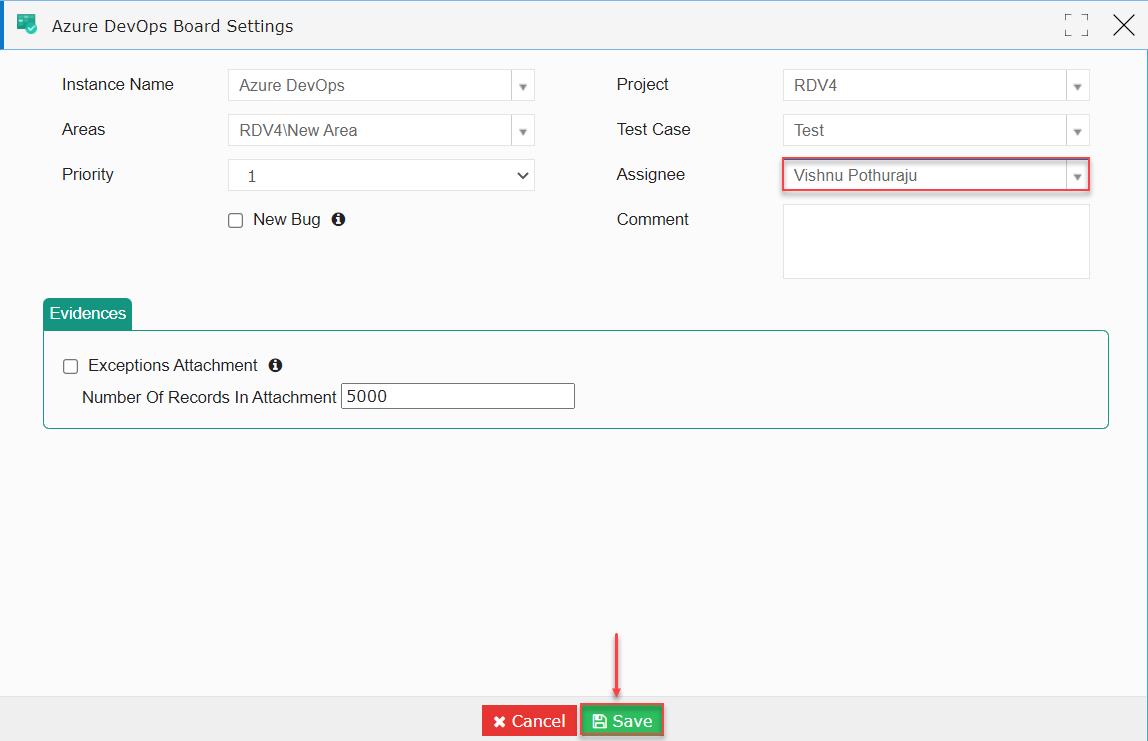
- The ‘Azure DevOps Board Settings’ widget is closed saving the widget data.
- The user is navigated to the FDR session page.
