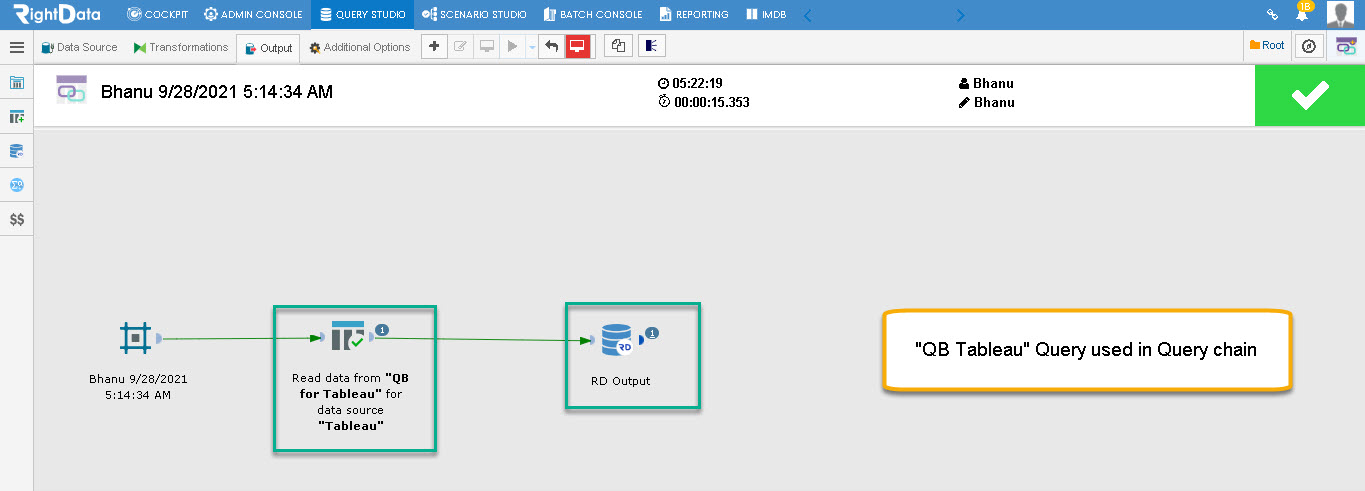
A new profile “Tableau” is added in the Query builder. Users can use this profile for visualization and apply filters accordingly for each selected sheet. Users can later save this Query and utilize it in any existing query chains, FDRs or validations.
Note: You can only use query builder to create queries using Tableau filters and once these queries were created, you can use and run them in any query chains, FDRs and scenario validations.
To learn more, let us walk through the below procedure:
- Click the ‘QUERY STUDIO’ module.
- Hover on ‘Query Builder’ snippet from the left pane options.
- Click the ‘Query’ option.
Path: QUERY STUDIO > Query Builder > Query

- The user is navigated to the ‘Query’ session page.
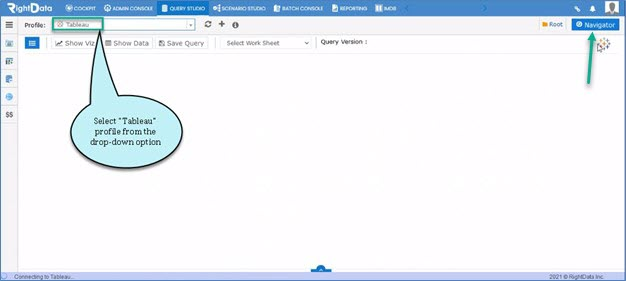
- Select ‘Tableau’ profile from the drop-down list.
- Click the ‘Navigator’ button.
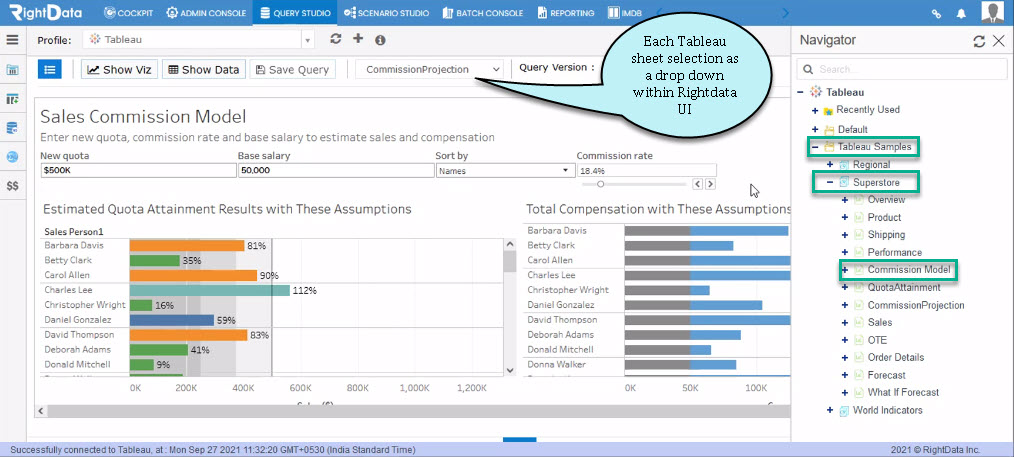
- Let’s take the ‘Commission Model’ from ‘super store’ within ‘Tableau samples’ as shown here.
- Select ‘CommissionProjection’ from the ‘Select Work Sheet’ drop-down list.
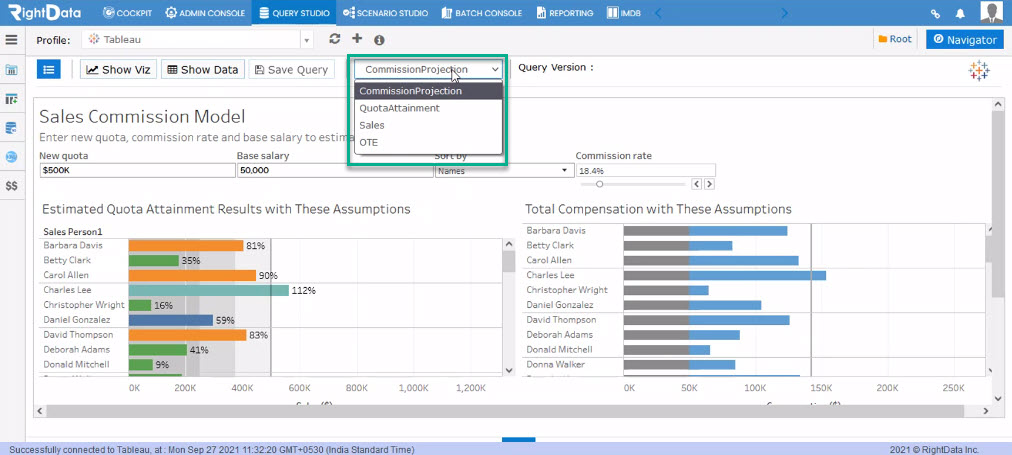
- Now, Let’s select ‘QuotaAttainment’ from the ‘Select Work Sheet’ drop-down list.
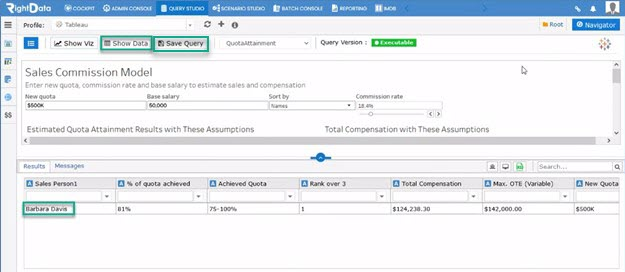
- Click the ‘Show Data’ button.
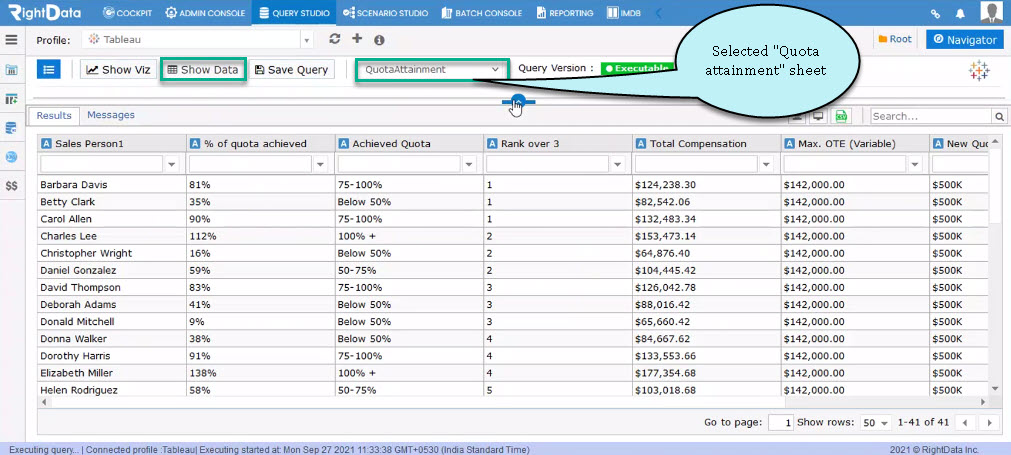
- Let’s select the sales person ‘Barbara Davis’.
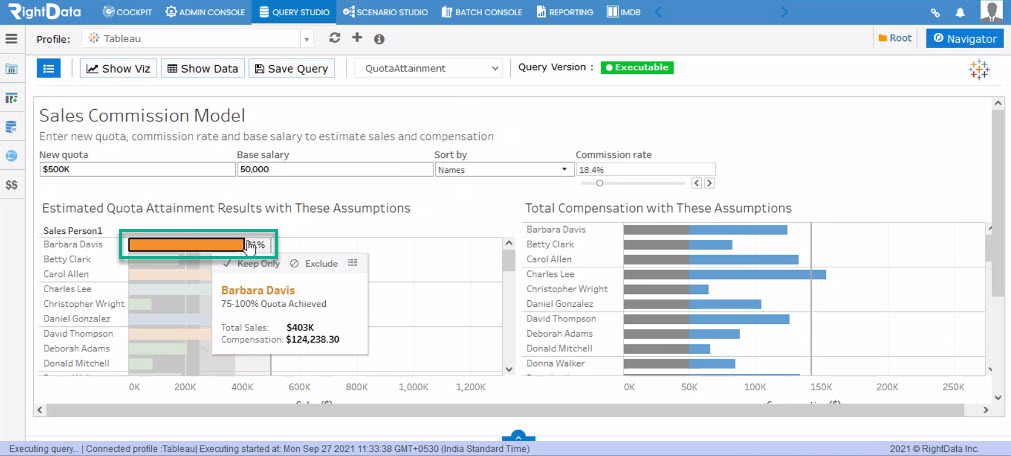
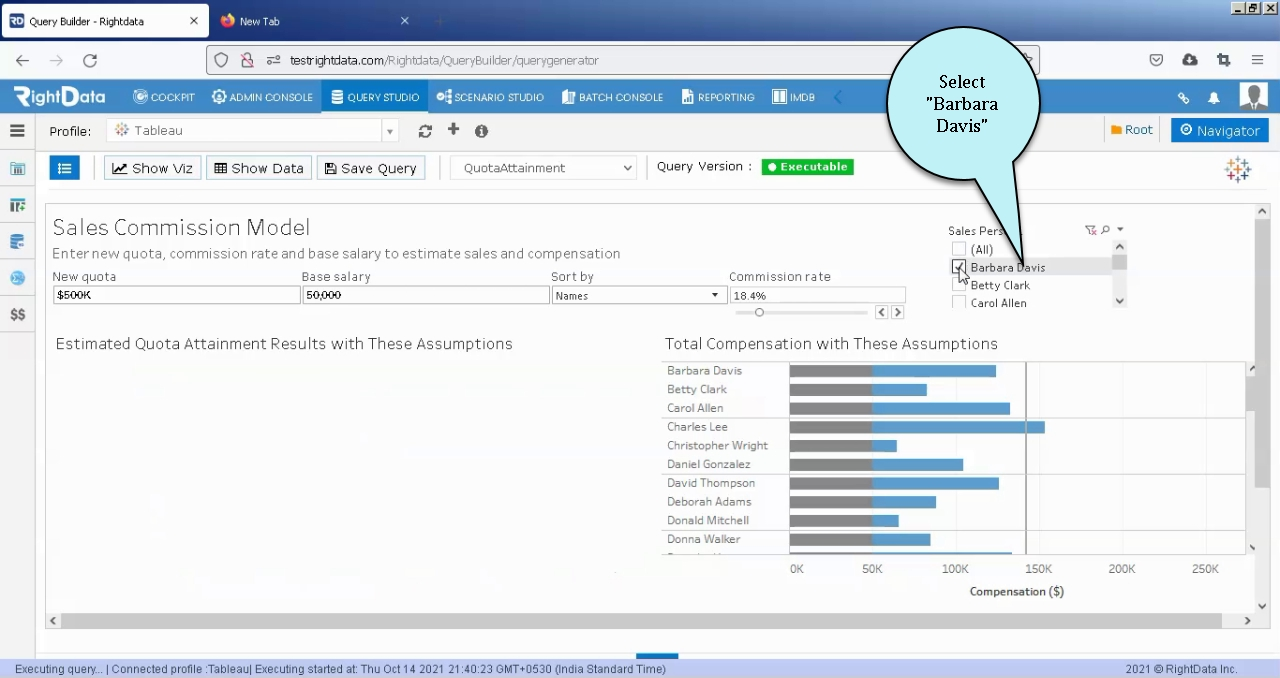
- Select the checkbox ‘Barbara Davis’ to apply filters.
- The ‘Quota Attainment Results’ for sales person ‘Barbara Davis’ is displayed below.
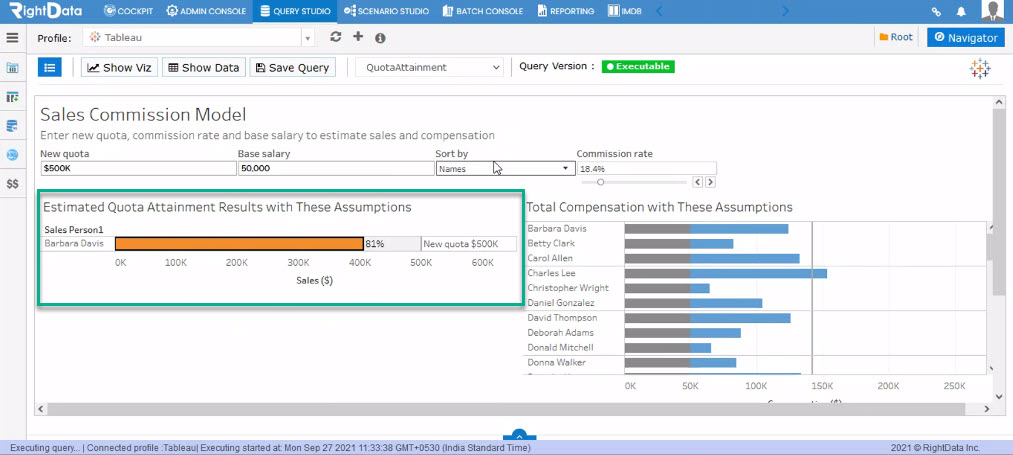
- Now, click the ‘show data’ button to view the details of the sales person ‘Barbara Davis’.
- Click the ‘Save Query’ button.
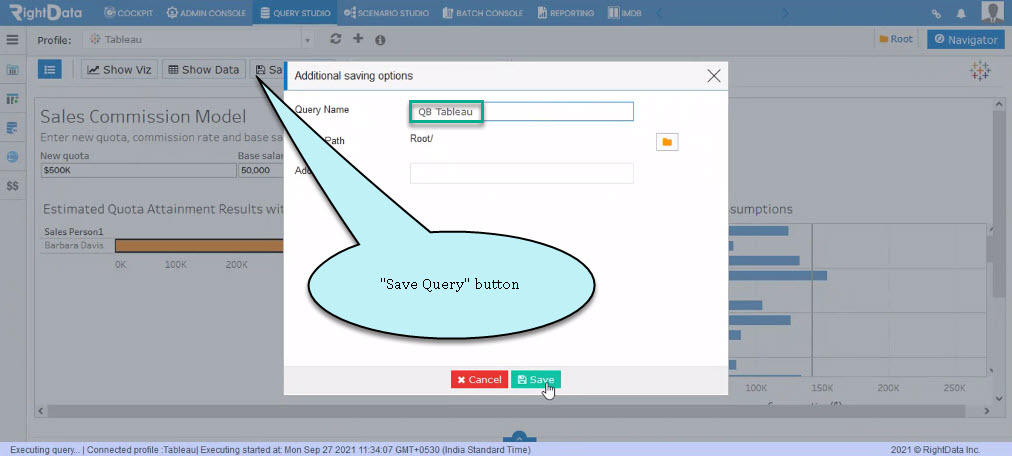
- An ‘Additional savings options’ pop-up window is displayed.
- Let’s enter ‘QB Tableau’ in the ‘Query Name’ text field.
- Click the ‘Save’ button.
- The saved Query (QB Tableau) is shown in the ‘Query Explorer’ session page.
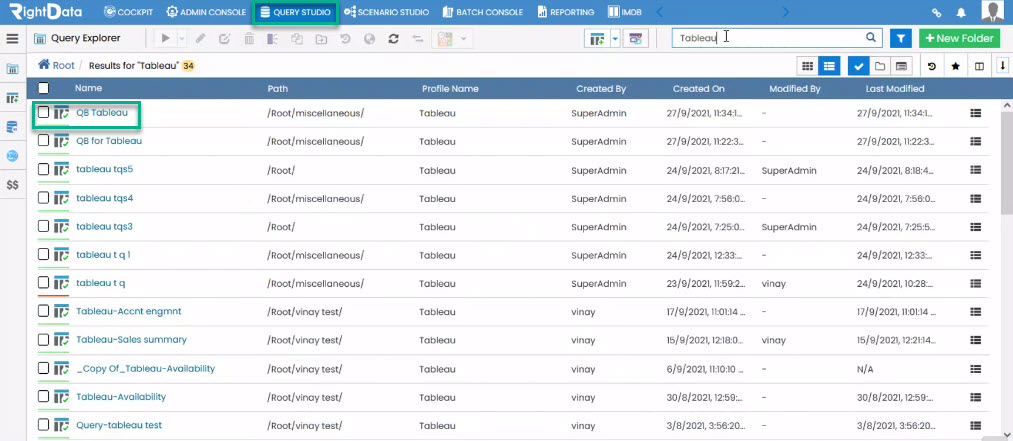
Note: The user can now use this Query ‘QB Tableau’ in any Query chains, FDRs or scenario validations.
‘QB Tableau’ Query screenshot used in a sample query chain