An admin pro-user can partially or permanently delete a user. In the previous build, admin only has an option to partially delete the user leaving behind his/her execution and content session history but now an admin can permanently delete a user assigning his/her execution/content session history to any other user through a dropdown list selection.
To learn more, let us walk through the below procedure:
- Click the ‘ADMIN CONSOLE’ module.
- Hover on the ‘Security’ snippet from the left pane options.
- Click the ‘Users’ option.
Path: ADMIN CONSOLE > Security > Users
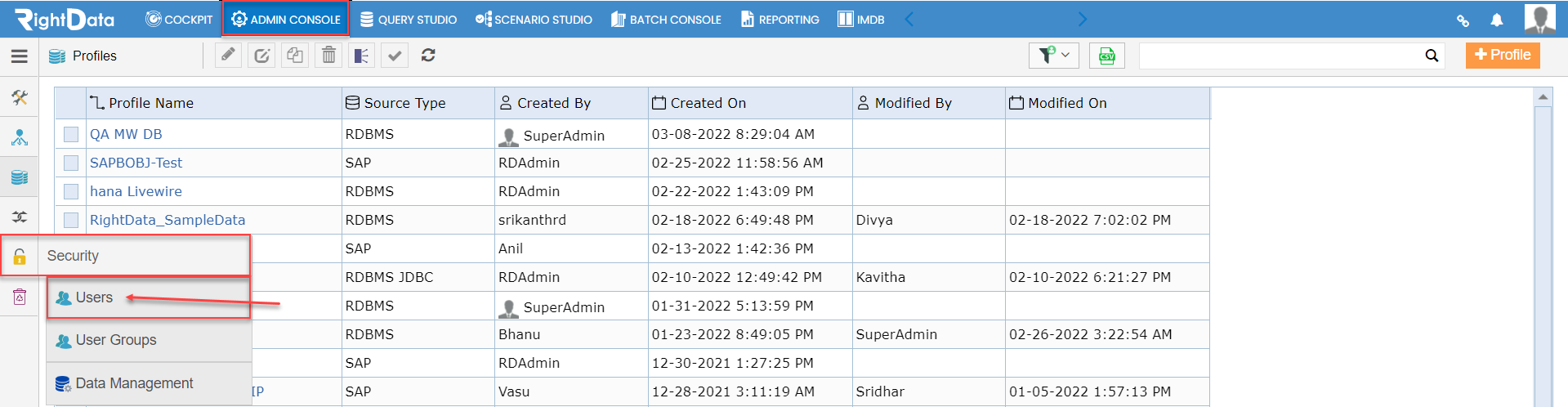
- The user is navigated to the ‘Users’ session page.
Note: By default, ‘All Users’ tab is selected.

- Let’s select the checkbox ‘David’ from the ‘User Name’ column.
- Click the Delete Button.

- A ‘Delete User’ pop-up window is displayed.
- By default, the Delete Type will be ‘Soft Delete.’
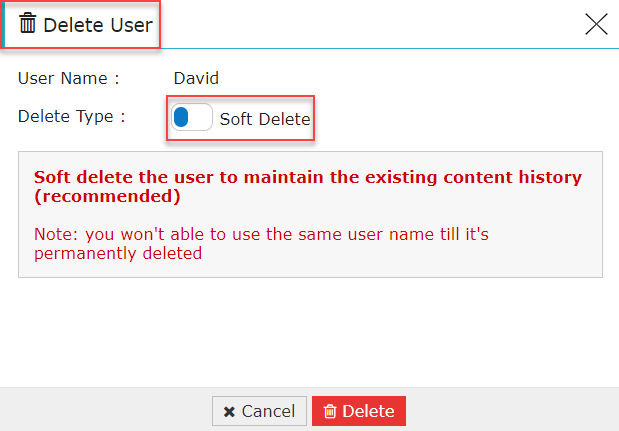
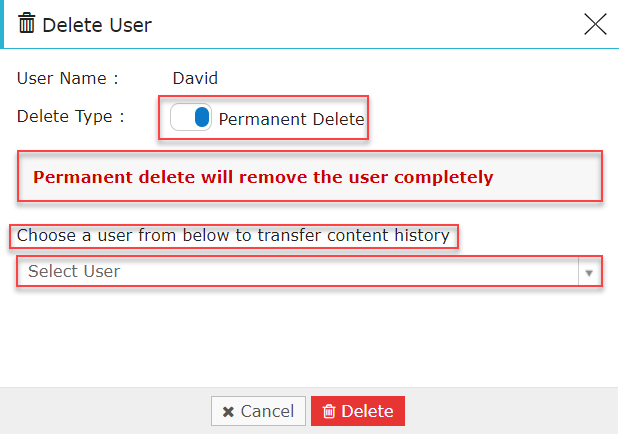
- Let’s switch the ‘Delete Type’ mode to ‘Permanent Delete.’
- A notification ‘Permanent delete will remove the user completely’ is displayed.
- The Admin pro-user must ensure to transfer the content history to any of the users from the ‘Select User’ drop-down list.
- Let’s choose ‘Bhanu’ from the ‘Select User’ drop-down list.
- Click the ‘Delete’ button.
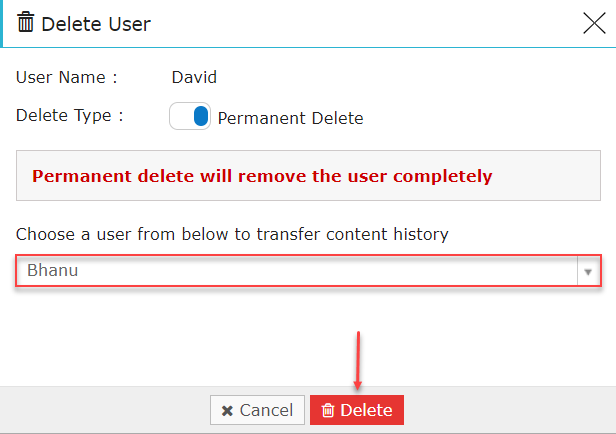
- A toaster message ‘David Deleted successfully’ is displayed.
