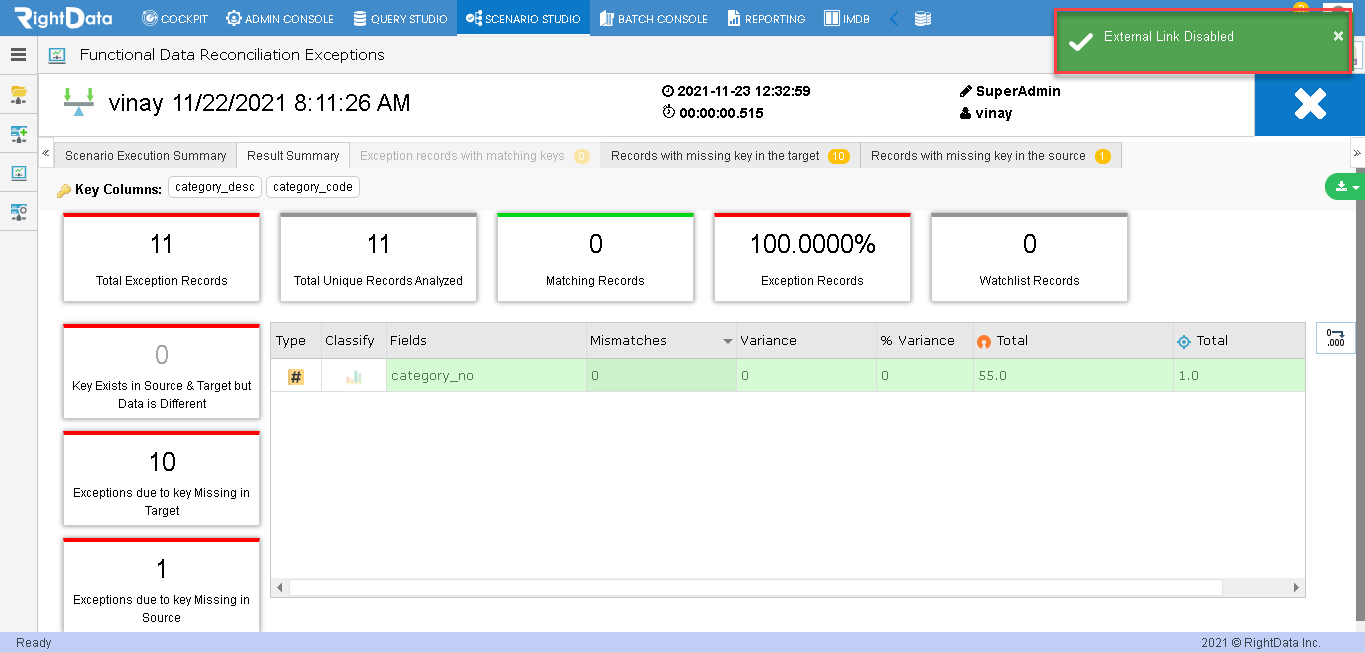
Users can now enable/disable the scenario exceptions summary external links. If users enable the scenario exceptions summary link from the exceptions summary page, an external link is generated where they can view the results even without logging into the console. This is useful especially if they wish to share the summary exceptions result with anyone and simultaneously, disable the external summary exceptions links for any security reasons.
Note: Though the user enables the external exceptions summary link and provides it to their members, they cannot edit that specific scenario. This external link is only for viewing the exceptions summary results outside the console.
To learn more, let us walk through the below procedure:
- Click the ‘SCENARIO STUDIO’ module.

- Take any sample FDR, TDR, or Validation scenario.
- Let’s take a scenario named ‘SAMPLE FDR SCENARIO 100’

- Checkbox ‘SAMPLE FDR SCENARIO 100’.
- Click the ‘Edit’ button.
Note: An Edit tooltip is displayed when hovered on the Edit button.

- The user is navigated to that particular FDR scenario (SAMPLE FDR SCENARIO 100) in create and edit mode.
- Click the ‘Execution History’ button.
Note: As the user hovers on the session history button, a tooltip ‘Execution History’ is displayed.
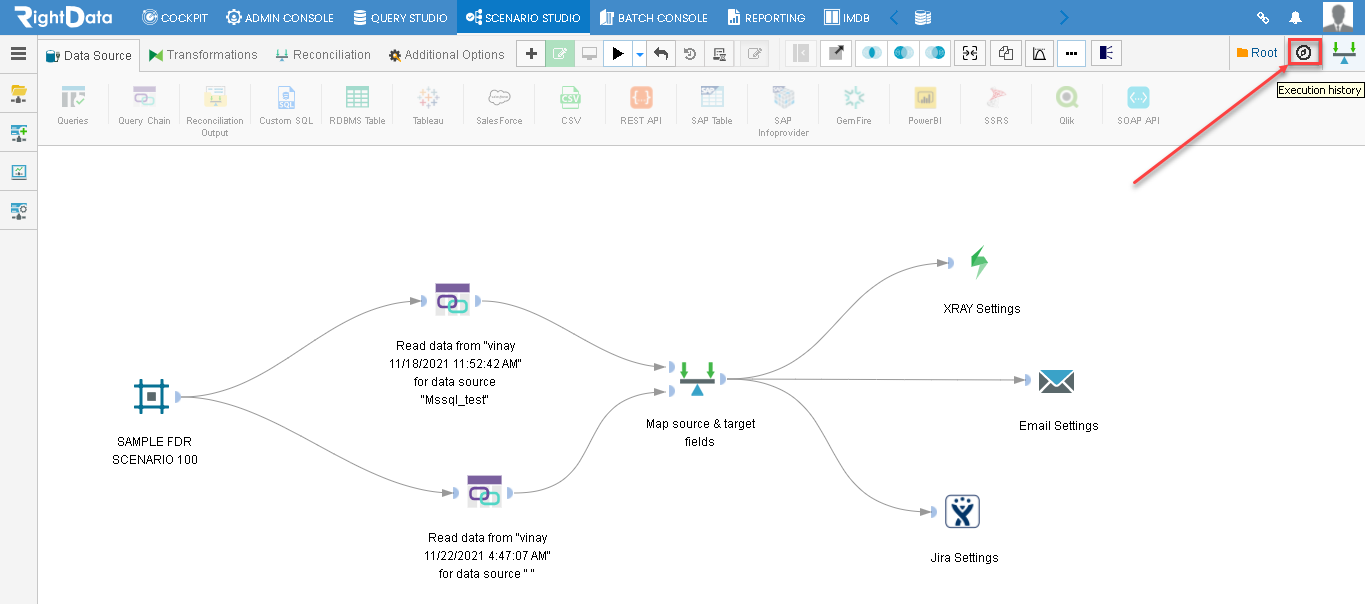
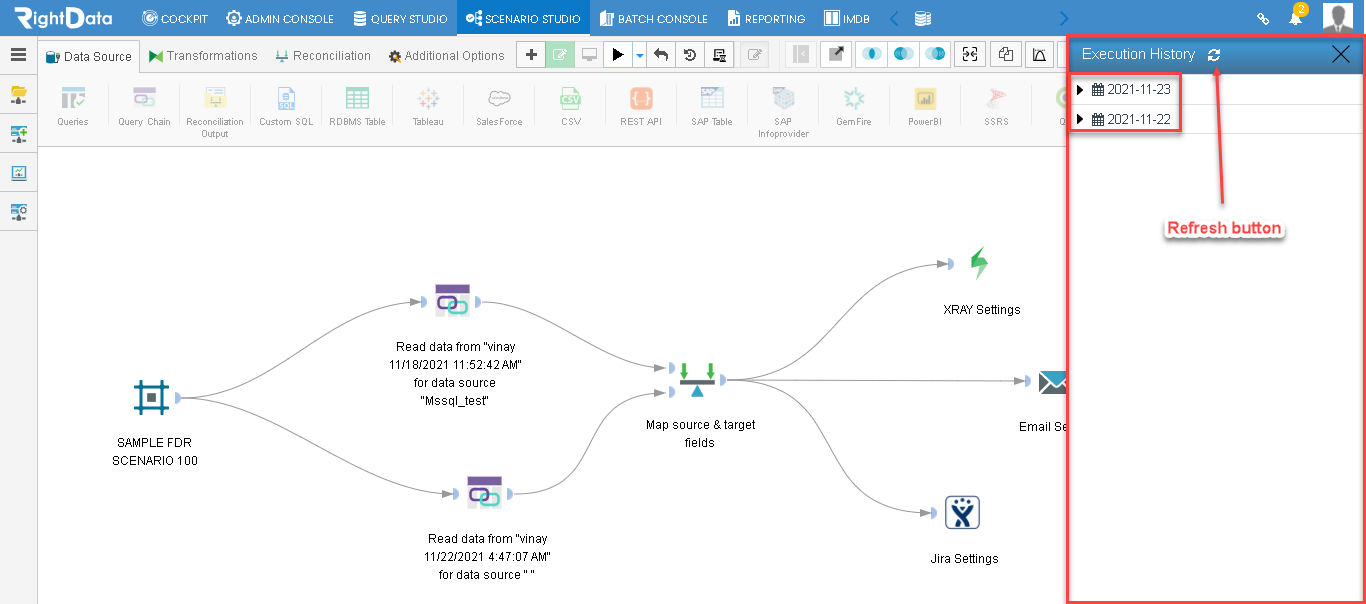
- An ‘Execution History’ slide screen is displayed.
- The FDR scenario’s execution history based on specific dates is shown here.
- A ‘Refresh’ button is used to refresh the ‘Execution History’ session page.
- Click the side arrow button (>) to view the specific times as of how many times this particular scenario is being executed on that particular date.
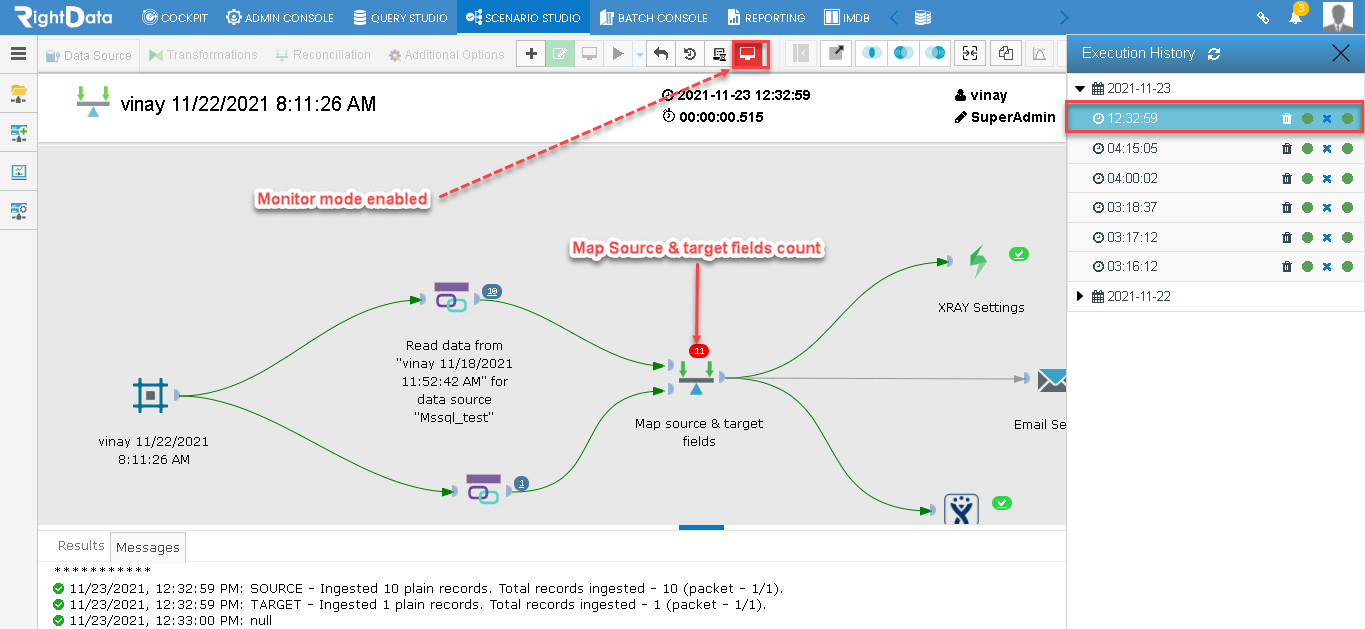
- Let’s click the time 12:32:59 for the date 2021-11-23.
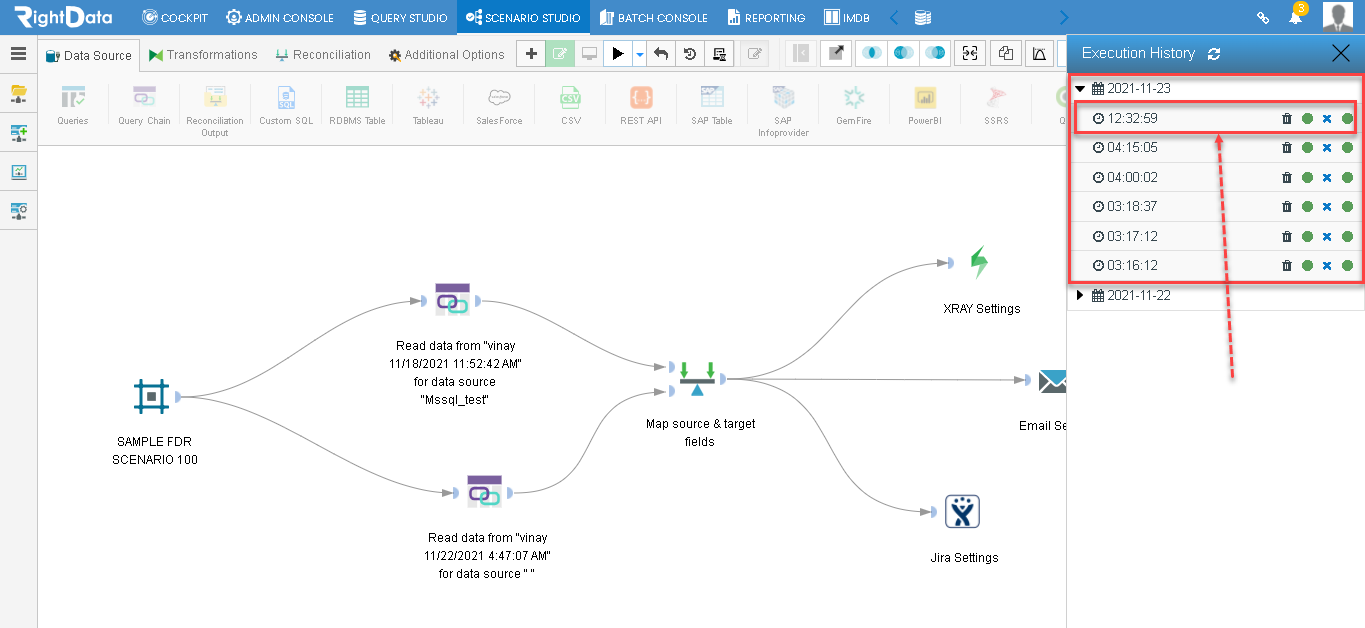
- The user is navigated to the same FDR scenario execution page that was performed on 2021-11-23 at 12:32:59.
- A Monitor mode is enabled.
- Click the ‘Map Source & target fields’ widget count button.
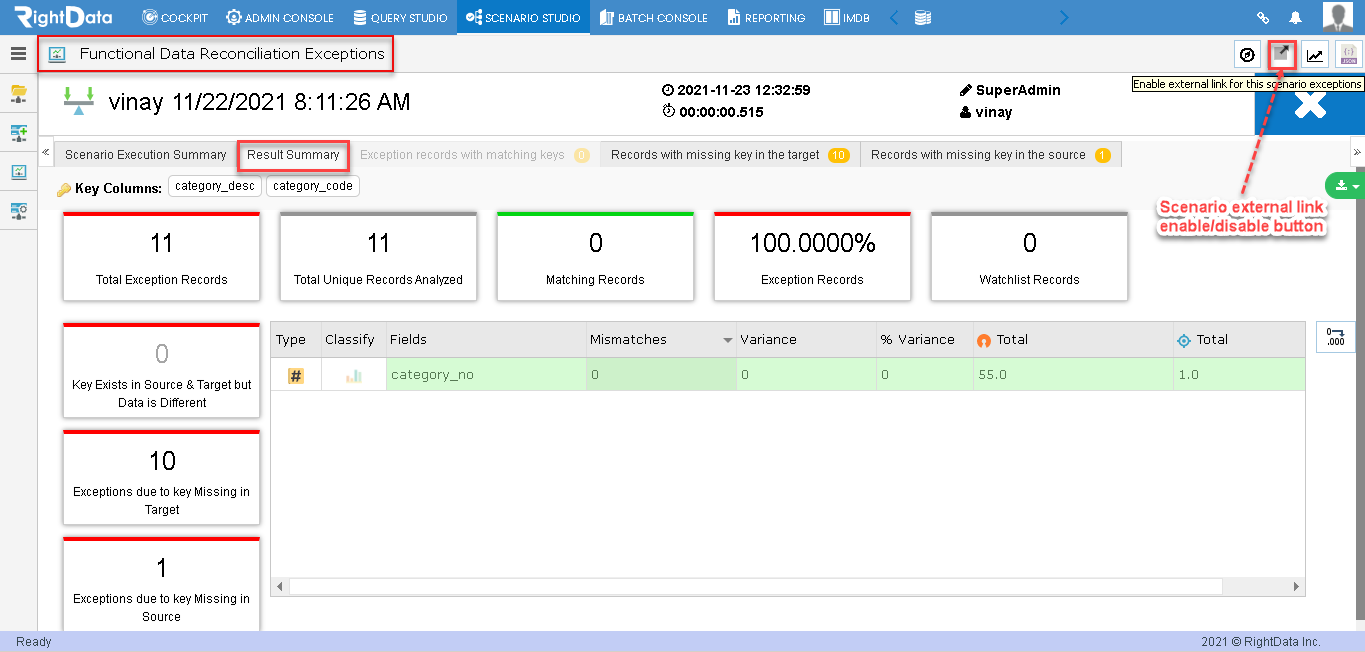
- The user is navigated to the ‘Functional Data Reconciliation Exceptions’ page displaying the ‘Results Summary’ tab.
- Click the ‘Enable external link for this scenario exceptions’ button.
Note: Currently this ‘Enable external link for this scenario exceptions’ button is in disable mode. If this button turns green color, then it indicates the external link is enabled.
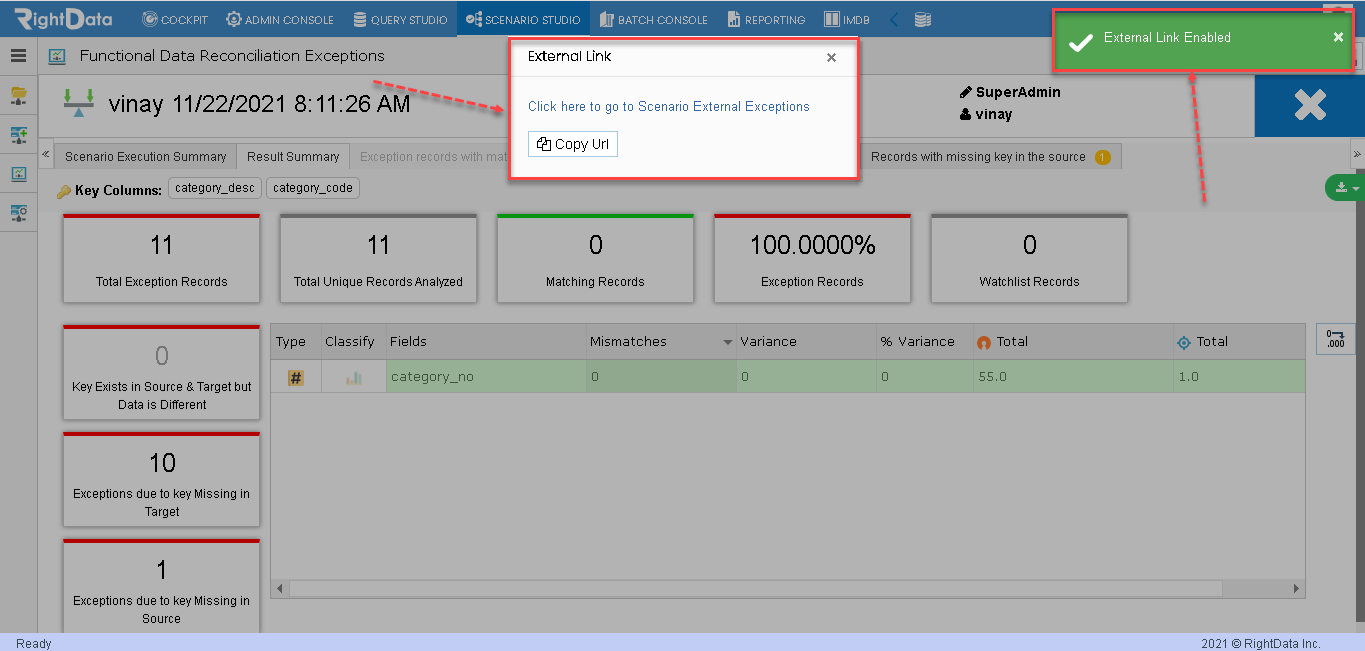
- A toaster message ‘External Link Enabled’ is displayed on the top right corner of the page.
- Simultaneously an ‘External Link’ pop-up window is displayed.
- ‘Click here to go to Scenario External Exceptions’ redirects the user to the External Link page.
- Click the ‘Copy Url’ and paste this link on the browser to display the External Link contents.
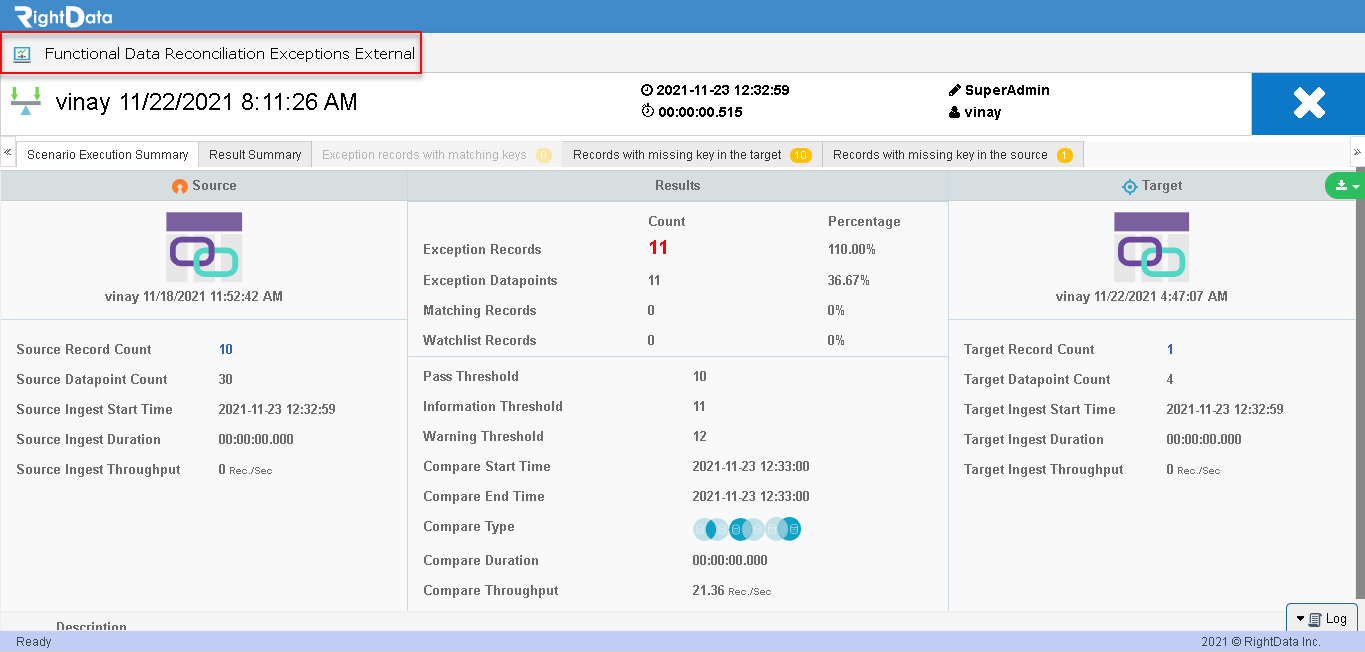
- Let’s click the ‘Click here to go to Scenario External Exceptions’ link.
- Then, he/she will be navigated to the ‘Functional Data Reconciliation Exceptions External’ session page.
- Additionally, this link can be shared with anyone who doesn’t have the access to the console to view only the scenario exceptions summary results without modifying any contents.
- Now let’s disable the ‘Enable external link for this scenario exceptions’ button by clicking it.
- A toaster message ‘External Link Disabled’ is displayed on the top right corner of the page.