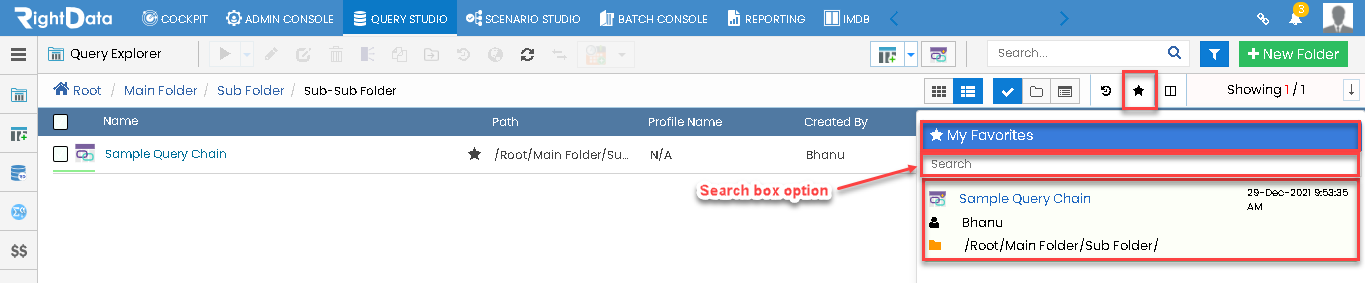
Users can go through the folder path view as they bookmark any folder, subfolder, or file within any explorer type (Query Explorer, Scenario Explorer, and Job Explorer).
To learn more, let us walk through the below procedure:
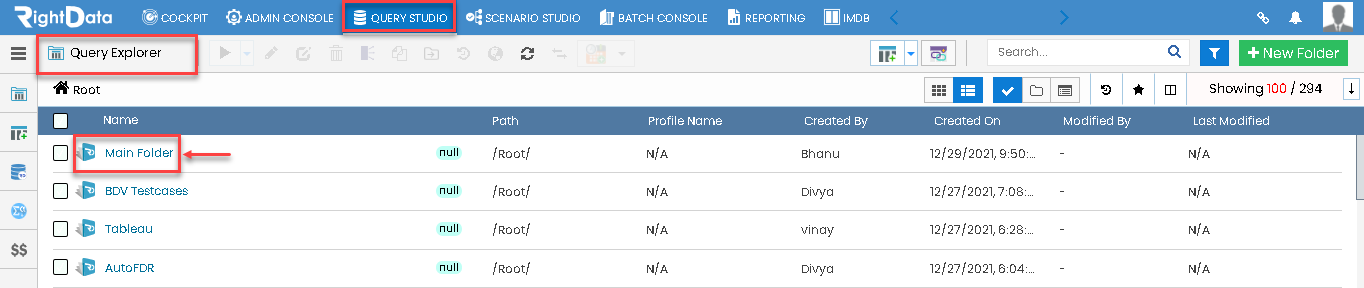
- Click the ‘QUERY STUDIO’ tab.
- The user is navigated to the ‘Query Explorer session’ page.
- Let’s suppose check if the Folder path view is working by considering ‘Main Folder’ as one of the available examples.
- Click the ‘Main Folder.’
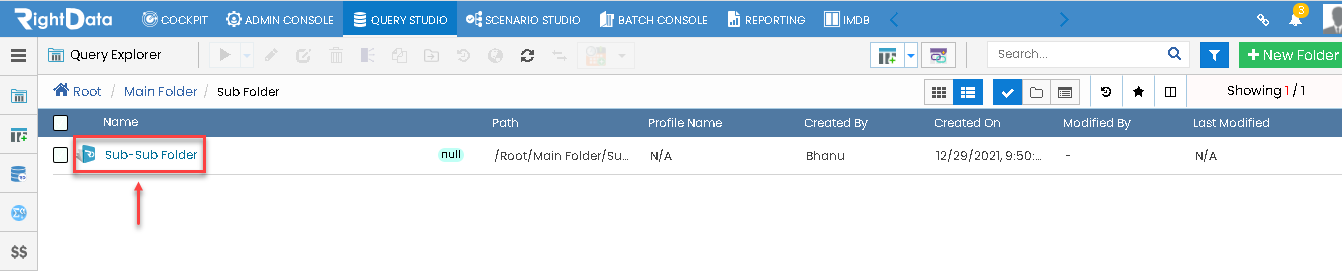
- The user is navigated to another folder in the name ‘Sub Folder’.
- Now, click the ‘Sub Folder’.

- Now, the user is navigated to another folder with the name ‘Sub-Sub Folder’.
- Now, click the ‘Sub-Sub Folder’.
- A file is displayed with the name ‘Sample Query Chain’.
- Hover on the ‘Sample Query Chain’ file to view a ‘Bookmark’ star option.
- Click on the ‘Bookmark’ star option.

- A toaster message ‘Favorite Added Successfully’ is displayed on the top right corner of the page.
- Click the ‘Bookmarks’ button.

- ‘My Favorites’ slide screen window with a ‘Search box’ option for searching the bookmarked items is displayed.
- Now, the user finally notices the Folder path ‘/Root/Main Folder/ Sub Folder/’ of the particular file ‘Sample Query Chain’.