RightData uses Apache Drill for querying the Flat Files, JSON Files, Parquet and Avro files on Amazon S3 or Azure Blob. This article will provide steps need to install Apache Drill on RightData window server
Setting up the environment:
- Make sure JAVA_HOME environment variable is set to Java jdk1.8 location.
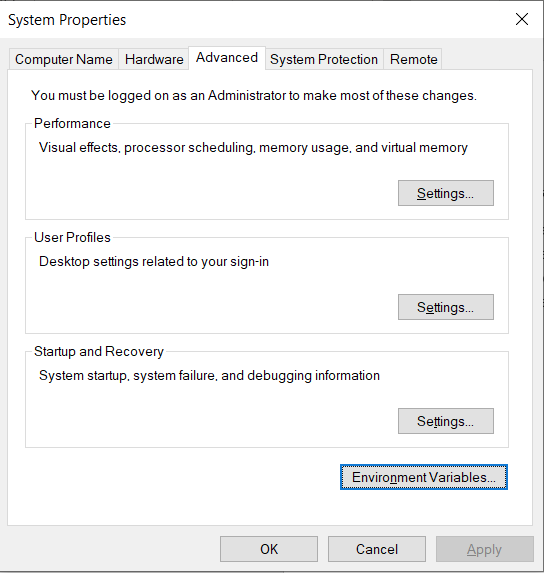
- Open Advanced system settings
- Click on Environment Variables and under System Variables, click on New

- Name the variable JAVA_HOME and the value is Java jdk1.8 location.
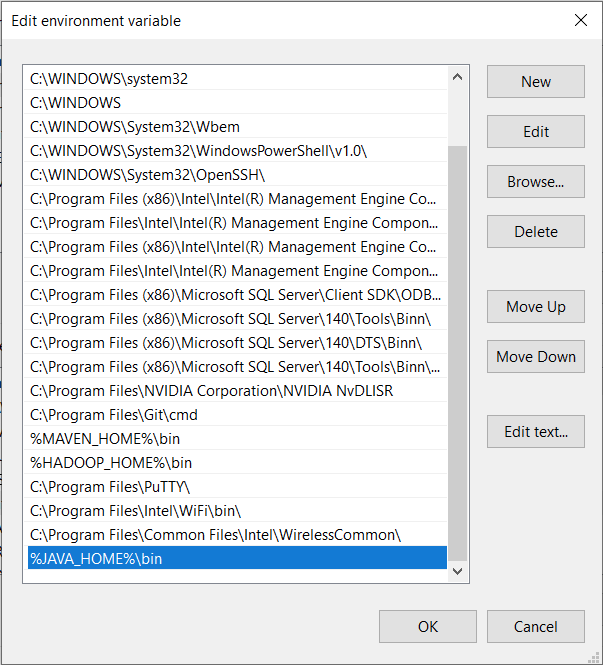
2. Make sure %JAVA_HOME%\bin is added to Path environment variable
- Open Path variable in edit mode and click on New and enter %JAVA_HOME%\bin.
Create Drill UDF directories and change the owner.
Run the command prompt as administrator, and issue the following commands:
Ø mkdir "%userprofile%\drill"
Ø mkdir "%userprofile%\drill\udf"
Ø mkdir "%userprofile%\drill\udf\registry"
Ø mkdir "%userprofile%\drill\udf\tmp"
Ø mkdir "%userprofile%\drill\udf\staging"
Ø takeown /R /F "%userprofile%\drill"
Download Drill.
Ø Download the latest version of Apache Drill at http://wwwus.apache.org/dist/drill/drill-1.16.0/apache-drill-1.16.0.tar.gz.
Ø Move the downloaded file to the directory where you want to install Drill.
Ø Unzip the GZ file using a third-party tool. If the tool you use does not unzip the
Ø underlying TAR file as well as the GZ file, perform a second unzip to extract the Drill software. The extraction process creates the installation directory containing the Drill software.
Install Drill.
Ø Drill is an application that starts by opening a windows batch file.
Ø You can make Drill run in the background by running it from Windows task scheduler
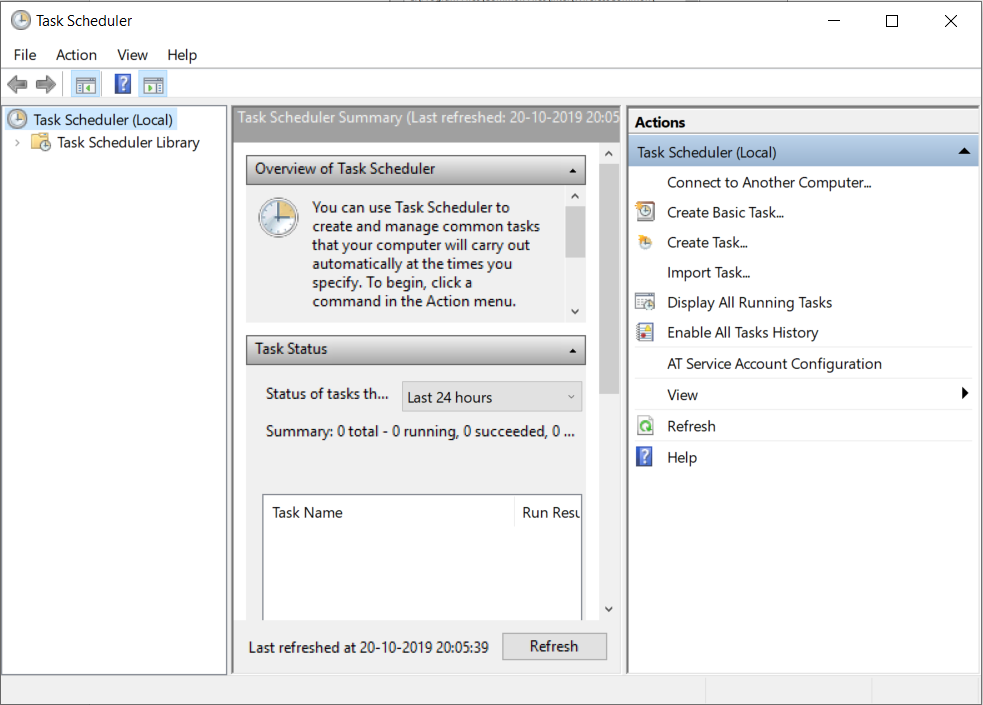
Ø Click on Create Task and give a name to the task.
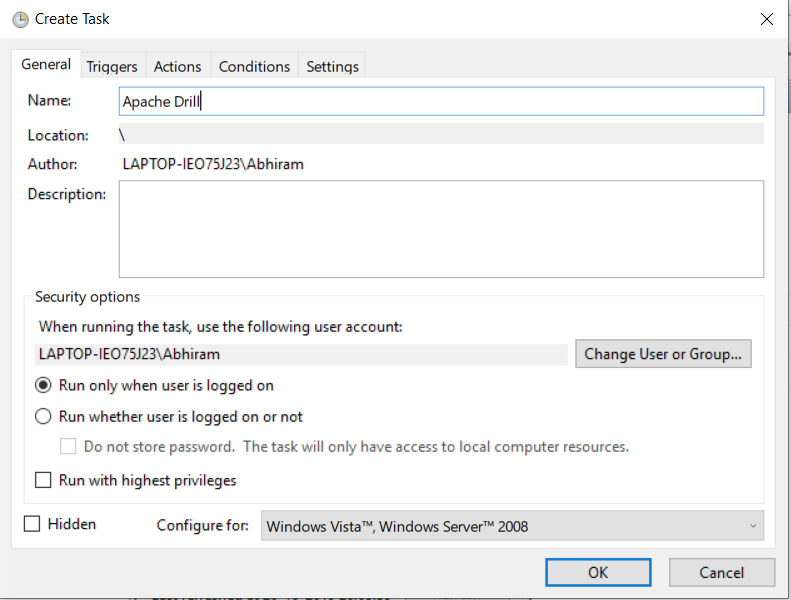
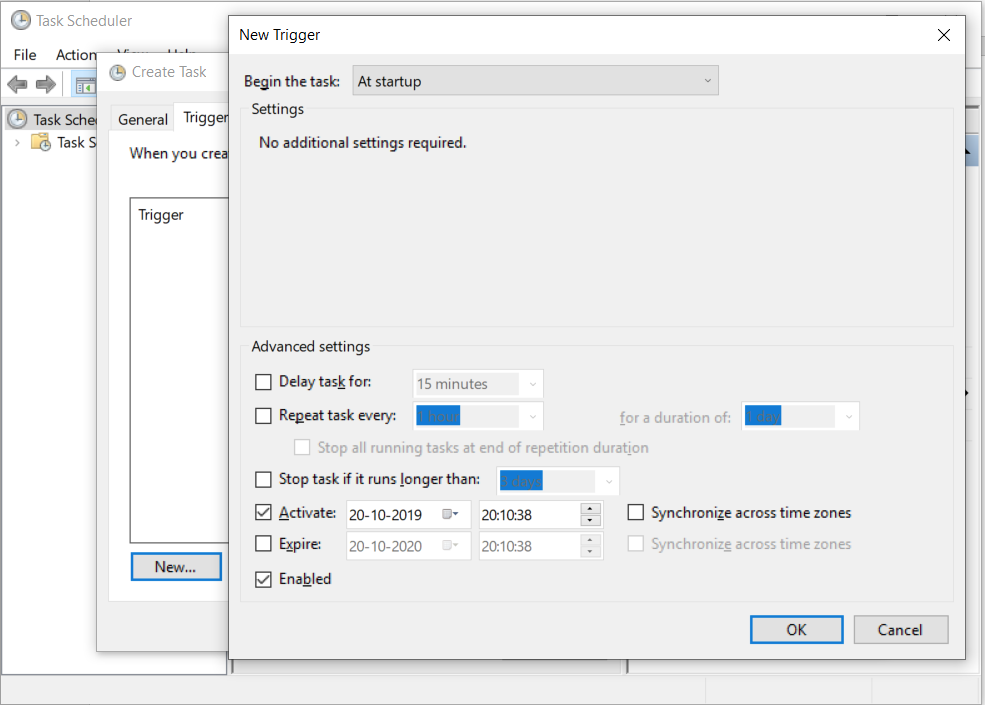
Ø Under Triggers, click on New and choose to Begin the task to be At startup and check --> Activate.
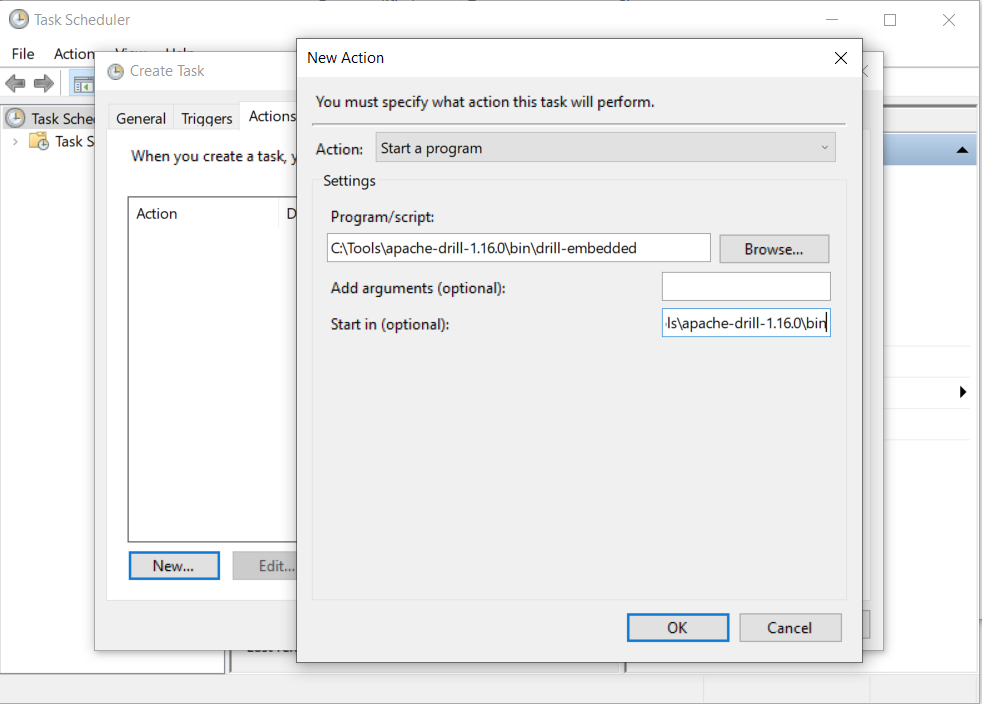
Ø Under Actions --> create a new action for Apache Drill. The batch file is drill-embedded
Ø Under settings, choose Stop the existing instance if the task is already running.
Run Apache drill.
Ø Select the task in task scheduler and run it.
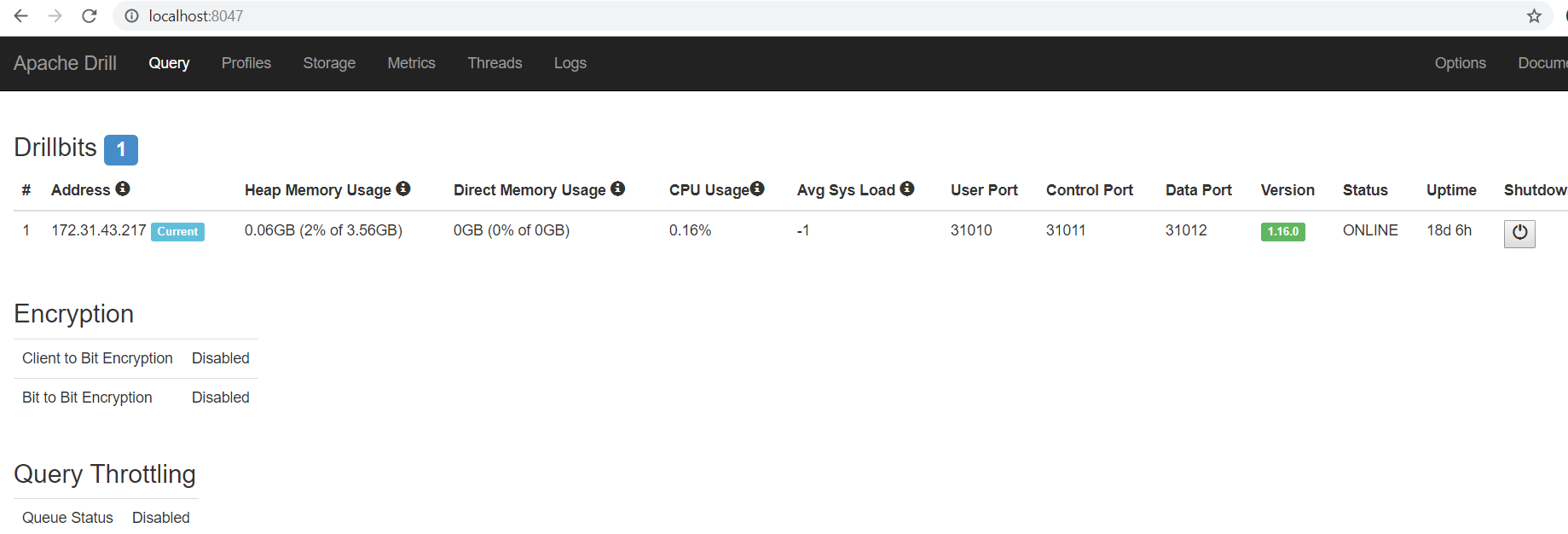
Ø Run the URL: <server-ip>:8047. You should be seeing Apache drill web console page that looks similar to the following.
Configure Amazon S3 bucket:

Ø Copy the template of Amazon S3 connection and click on back.
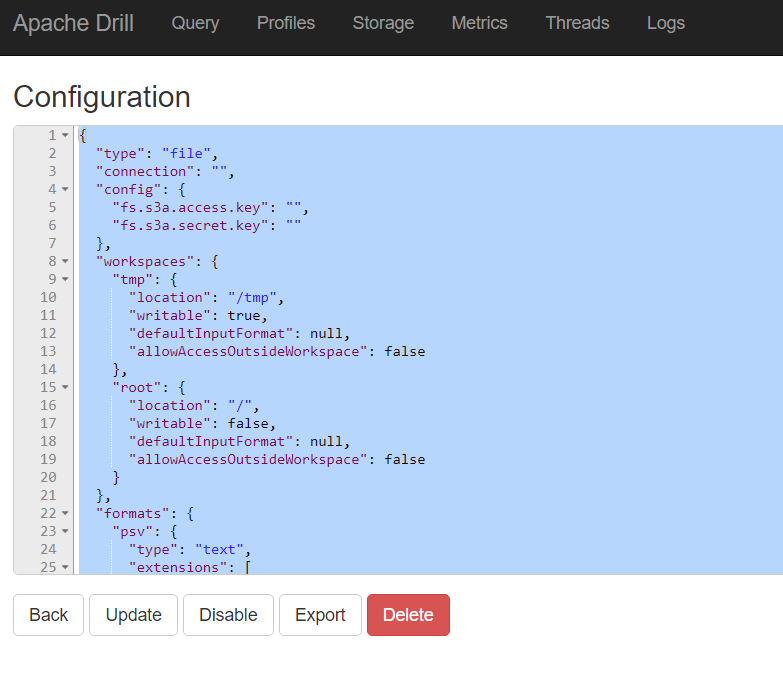
Ø Create a new plugin for your Amazon S3 bucket. Click on create and paste the S3 connection template. Give a name to the plugin and also update the configuration with the following details.
o bucket name – “s3a://<bucket-name>”
o fs.s3a.access.key – “<access-key>”
o fs.s3a.secret.key – “<secret-key>”
Now the AWS S3 plugin is ready to use for creating a connection profile in RightData.